
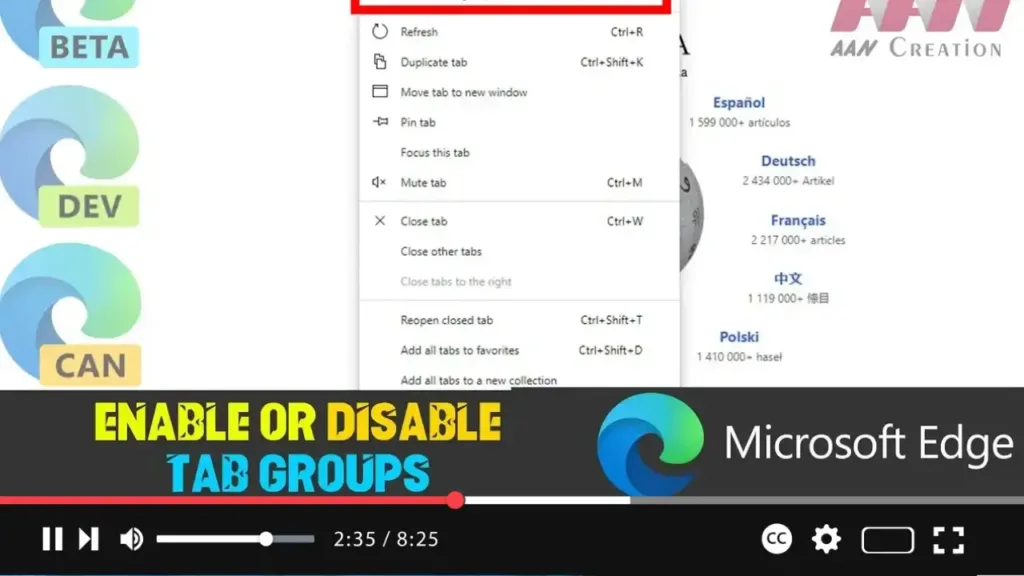

The Tab Groups feature in Microsoft Edge Chromium allows users to organize their tabs into visually distinct groups, making it easier to manage multiple tabs based on topics or tasks. This feature can be incredibly useful for those who frequently browse multiple websites simultaneously and want a more organized tab experience.
Although Tab Groups were initially rolled out to a limited group of users in Google Chrome, Microsoft Edge Chromium also supports this feature, but it may need to be enabled manually through the browser’s experimental flags.
Why Use Tab Groups?
- Improved Navigation: Quickly switch between different groups of related tabs.
- Reduced Clutter: Keep your workspace organized by grouping tabs based on projects or tasks.
- Customizable Appearance: Name each group and assign a unique color to easily differentiate between them.
Steps to Enable Tab Groups in Microsoft Edge Chromium
-
Open Microsoft Edge Chromium: Start by launching the Microsoft Edge Chromium browser on your computer.
-
Access the Flags Page: In the address bar, type
edge://flags/#tab-groupsand press Enter. This will take you to the experimental flags page where you can enable or disable various hidden features.
.webp)
-
Enable Tab Groups:
- Find the Tab Groups option on the flags page.
- From the drop-down menu next to the Tab Groups option, select Enabled.
-
Restart the Browser: After enabling the feature, you will be prompted to restart the browser. Click on the Restart button that appears to apply the changes.
Once these steps are completed, Tab Groups will be enabled in your Microsoft Edge Chromium browser, allowing you to start organizing your tabs into groups.
Steps to Disable Tab Groups in Microsoft Edge Chromium
If you find that Tab Groups is not a feature you need or prefer, you can easily disable it by following these steps:
-
Open Microsoft Edge Chromium: Launch the Microsoft Edge Chromium browser on your device.
-
Access the Flags Page: In the address bar, type
edge://flags/#tab-groupsand press Enter. -
Disable Tab Groups:
- Locate the Tab Groups option.
- From the drop-down menu next to it, select either Default (to return to the original settings) or Disabled (to completely turn off the feature).
-
Restart the Browser: After selecting the appropriate option, click on the Restart button to apply the changes.
After following these steps, the Tab Groups feature will be disabled, and your tabs will no longer be grouped in Microsoft Edge Chromium.
.webp)
Additional Information
-
Flags Page Caution: The experimental flags page in Microsoft Edge Chromium contains a variety of features that are not fully tested and may impact browser performance. Use caution when enabling or disabling features from this page.
-
Persistent Group Settings: Even after disabling the Tab Groups feature, any groups you created while it was enabled may persist in your current session until the browser is restarted.
-
Version Compatibility: Ensure that your Microsoft Edge Chromium is up-to-date, as older versions may not support the Tab Groups feature.
By following these steps, you can easily manage the Tab Groups feature in Microsoft Edge Chromium, tailoring your browsing experience to your specific needs.

