
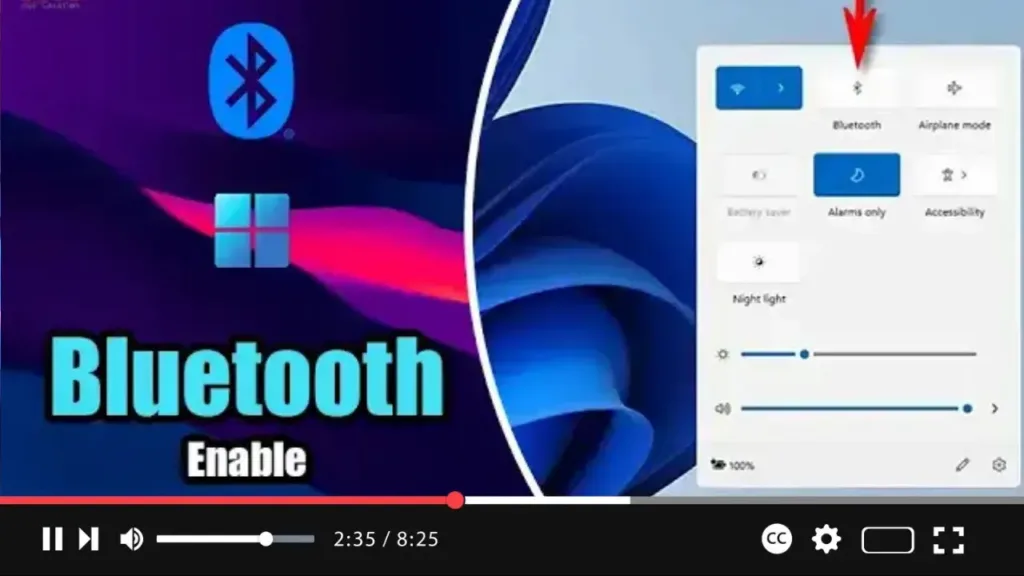

On Windows 11 devices, Bluetooth serves as a versatile wireless adapter, enabling you to transfer data over short distances and connect a wide array of peripherals, including keyboards, mice, headphones, cameras, phones, and more.
If Bluetooth isn’t already enabled by default on your device, you can easily toggle this feature on or off using either the Settings app or the Taskbar. Here’s a quick guide on how to do it:
Step 01: Open Settings: Begin by launching the Settings app on your Windows 11 device.
Step 02: Access Bluetooth & devices: Within Settings, navigate to the “Bluetooth & devices” section.
.webp)
Step 03: Toggle Bluetooth: Look for the Bluetooth toggle switch on the right side of the screen. Simply click on the toggle switch to turn Bluetooth on (if it’s currently off) or off (if it’s currently on).
Alternatively, you can access Bluetooth settings directly from the Quick Settings flyout by pressing the Windows key + A keyboard shortcut. Alternatively, you can click on the volume and network button in the bottom-right corner of the Taskbar and then click the Bluetooth button to toggle the feature on or off.
.webp)
By following these simple steps, you can quickly enable or disable Bluetooth on your Windows 11 laptop or desktop computer, allowing you to seamlessly connect and manage various Bluetooth-enabled devices.
Enjoy the convenience of wireless connectivity with Bluetooth on your Windows 11 device!

