
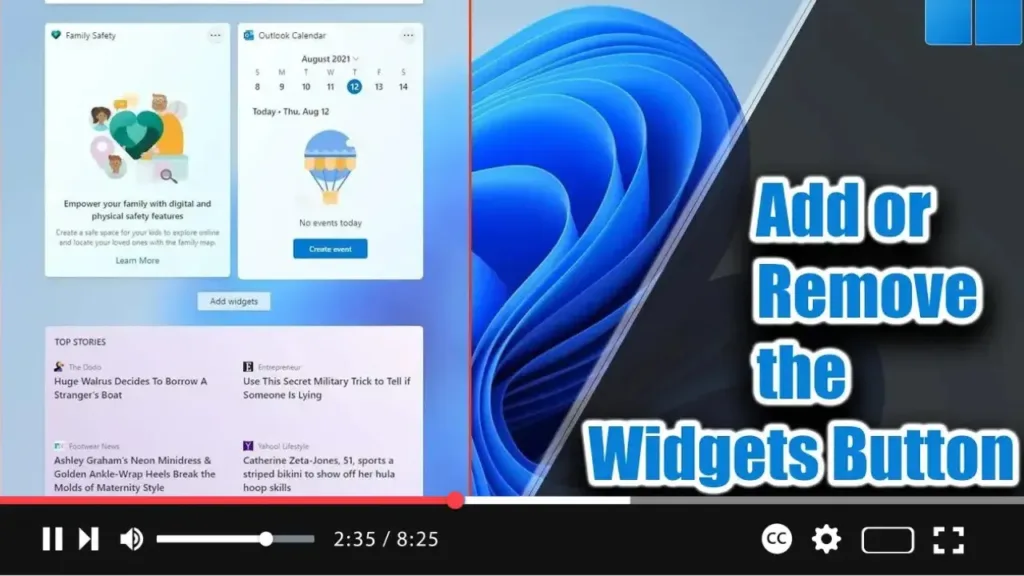

. Windows 11 introduces Widgets, a feature similar to News and Interests in Windows 10. It appears from the left side of the screen, displaying time and cards with information about weather, news, sports, and more. If you find the Widgets button unnecessary, you can remove it from the taskbar. Alternatively, if the button is missing, you can add it back from the Taskbar settings.
In this video, you will learn the steps to add or remove the Widgets button from the taskbar on Windows 11. Use these steps:
Step 01: Open Settings
Open the Settings app by clicking the Start button and selecting “Settings” or by pressing Windows key + I.
.webp)
Step 02: Click on Personalization
In the Settings app, click on the “Personalization” option.
Step 03: Click on Taskbar
On the right side, click on “Taskbar.”
Step 04: Toggle the Show Widgets Button
- To remove the Widgets button: Turn off the “Show Widgets button” toggle switch.
- To add the Widgets button: Turn on the “Show Widgets button” toggle switch.
Once you complete these steps, the Widgets button will be removed or added to the taskbar. However, even if the button is removed, you can still access Widgets using the Windows key + W keyboard shortcut.
.webp)
By following these steps, you can customize your taskbar to better suit your needs and keep it clutter-free.

