
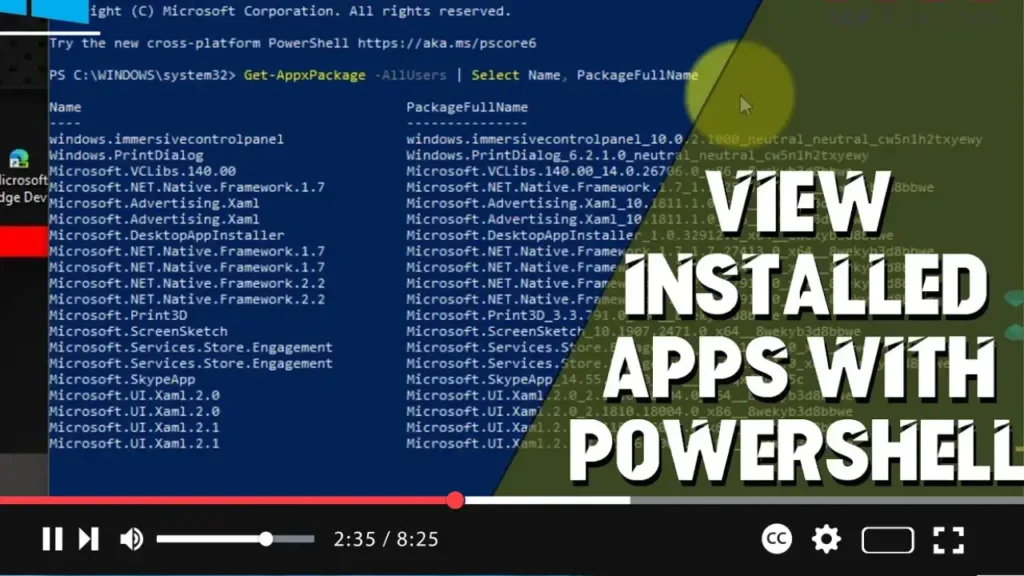

PowerShell is a powerful command-line tool that allows you to manage and automate various system tasks on Windows 10. One useful capability of PowerShell is to list all installed applications on your computer. This guide will show you how to use PowerShell to view installed apps on Windows 10.
Introduction
Using PowerShell to view installed apps provides a quick and efficient way to gather information about the software on your system. This can be useful for system audits, troubleshooting, or simply keeping track of what’s installed.
Steps to View Installed Apps with PowerShell on Windows 10
Step 01: Open PowerShell
- Press
Windows key + Xto open the Power User menu. - Select “Windows PowerShell (Admin)” to open PowerShell with administrative privileges.
.webp)
Step 02: List Installed Apps Using Get-WmiObject
- In the PowerShell window, type the following command to list installed applications using the
Get-WmiObjectcmdlet:Get-WmiObject -Class Win32_Product | Select-Object -Property Name, Version - Press
Enter. This command will display a list of installed applications along with their versions.
.webp)
Step 03: List Installed Apps Using Get-Package
- For a more comprehensive list, including apps installed from the Microsoft Store, use the
Get-Packagecmdlet:Get-Package | Select-Object -Property Name, Version, Source - Press
Enter. This command provides a detailed list of installed applications, including their names, versions, and sources.
Additional Information
Benefits of Using PowerShell
- Efficiency: Quickly list all installed applications without navigating through multiple menus.
- Detail: Provides detailed information about each application, including version numbers.
- Automation: Allows you to script and automate the process of gathering installed app information.
Considerations
- Permissions: Running PowerShell with administrative privileges is recommended to ensure you have access to all system information.
- Output Management: The output can be extensive. Consider exporting it to a file for easier analysis.
Exporting Installed Apps List to a File
To make the output easier to review and share, you can export the list of installed apps to a text file.
.webp)
Step 04: Export to a Text File
- Use the following command to export the list to a text file:
Get-Package | Select-Object -Property Name, Version, Source | Out-File -FilePath "C:InstalledAppsList.txt" - Press
Enter. This command saves the list of installed applications to a file namedInstalledAppsList.txtin the root of the C: drive.
Conclusion
By following these steps, you can efficiently view and manage the list of installed applications on your Windows 10 computer using PowerShell. This method provides detailed information and can be easily automated for regular audits or troubleshooting.PowerShell is a powerful command-line tool that allows you to manage and automate various system tasks on Windows 10. One useful capability of PowerShell is to list all installed applications on your computer. This guide will show you how to use PowerShell to view installed apps on Windows 10.

