
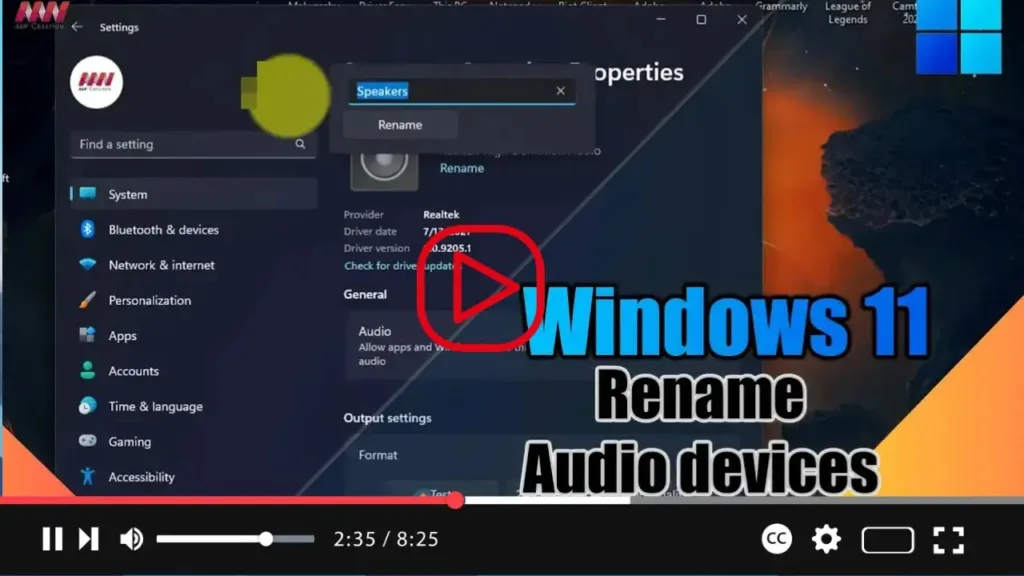

On Windows 11, the system assigns a generic name when connecting a new input or output device. Usually, this is not a problem when you only have a set of speakers or one microphone, but it can sometimes get confusing if you have multiple devices.
If you use multiple audio devices (such as speakers, headphones, and microphones) connected to your computer, you can change their names to make them easier to identify when you need to switch inputs or outputs from the Settings app or Taskbar Quick Settings flyout.
This guide will teach you the steps to assign a more identifiable name for sound devices on Windows 11, use these steps:
Step 01: Open Settings on Windows 11 and Click on System.
.webp)
Step 02: Click the Sound tab, and Under the “Output” section, select the speakers (or headphones) to rename.
Step 03: Click the Rename button.
.webp)
Step 04: Confirm a short and descriptive name for the audio device.
Step 05: Click the Rename button.
Once you complete the steps, the new name will apply, and it’ll be easier to identify when switching outputs from the Taskbar.

