
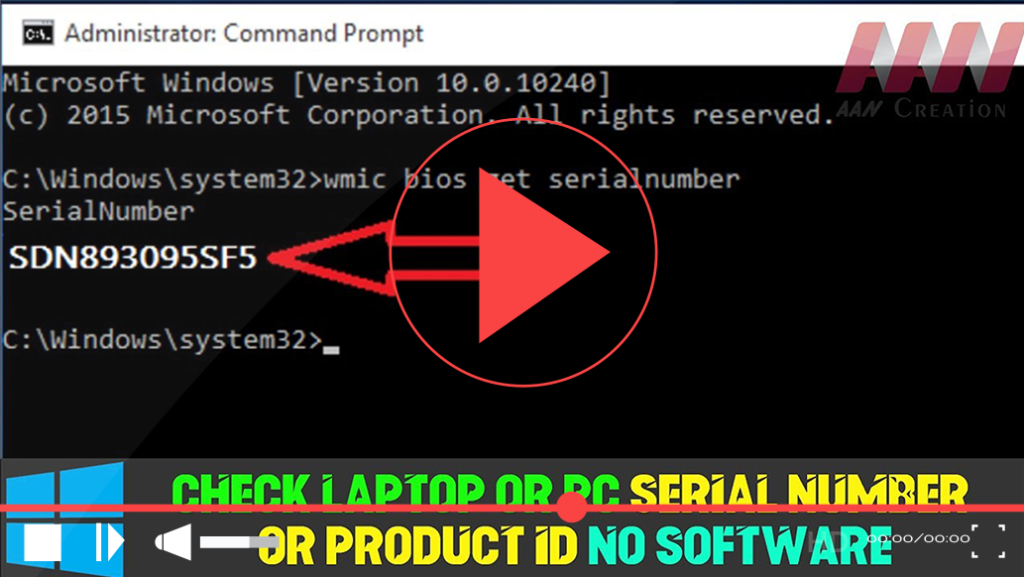

Finding your laptop or PC’s serial number or product ID can be essential for warranty claims, technical support, or hardware identification. While Windows does not display this information directly in its interface, you can retrieve it easily using built-in commands, BIOS/UEFI settings, or by inspecting the hardware itself. Here’s a comprehensive guide to help you locate your device’s serial number or product ID without the need for any additional software.
Method 1: Run the WMIC Command
The Windows Management Instrumentation Command-line (WMIC) tool allows you to access system information quickly, including the serial number. Follow these steps:
Step 01: Open Command Prompt
- For Windows 10 or 8: Right-click the Start button and select Command Prompt (or Windows PowerShell).
- For Windows 7: Press
Windows + R, typecmdin the Run dialog, and press Enter.
Step 02: Retrieve the Serial Number
In the Command Prompt window, type the following command and press Enter:
wmic bios get SerialNumber
You will see your computer’s serial number displayed beneath the heading “SerialNumber.” This command pulls the information directly from the system’s BIOS. If your PC’s manufacturer has not saved the serial number in the BIOS/UEFI firmware, you may see “0” or “To be filled by O.E.M.” instead of the actual serial number.

Method 2: Check the BIOS/UEFI Settings
If you cannot retrieve your serial number using the WMIC command, you can also check your BIOS or UEFI firmware settings. Here’s how:
Step 01: Access BIOS/UEFI
- Restart your PC and press the appropriate key to enter the BIOS/UEFI settings. This key varies by manufacturer but is often F2, Delete, Esc, or F10. Watch for a message during boot that indicates which key to press.
Step 02: Locate the Serial Number
Once you are in the BIOS/UEFI interface, navigate through the menus (the layout varies by manufacturer) until you find system information. Look for sections labeled System Information, Main, or similar. The serial number should be listed there along with other hardware details.
Method 3: Inspect the Hardware
If the previous methods do not yield results, you can find the serial number on the physical hardware of your laptop or PC:
-
Desktop Computers: Look at the back or side of the computer case for a sticker or label. This label often contains the serial number along with other relevant information such as the model number and manufacturer.
-
Laptops: Check the bottom of the laptop for a sticker or engraved information. Many manufacturers place the serial number on a label located on the underside of the device.
Method 4: Using Windows Settings (for Product ID)
While this method does not provide the serial number, you can easily find your product ID through Windows settings:
Step 01: Open Settings
- Click on the Start menu and select Settings (the gear icon).
Step 02: Navigate to System
- Click on System and then scroll down to About. Here, you will see information about your device, including the product ID.
Conclusion
Retrieving your laptop or PC’s serial number or product ID is straightforward using built-in methods like the WMIC command, BIOS/UEFI settings, or checking the hardware directly. If you encounter issues retrieving the serial number, verify your BIOS settings, or inspect the physical device for labels. Having your serial number handy can streamline warranty claims and technical support, ensuring you get the assistance you need quickly.

