
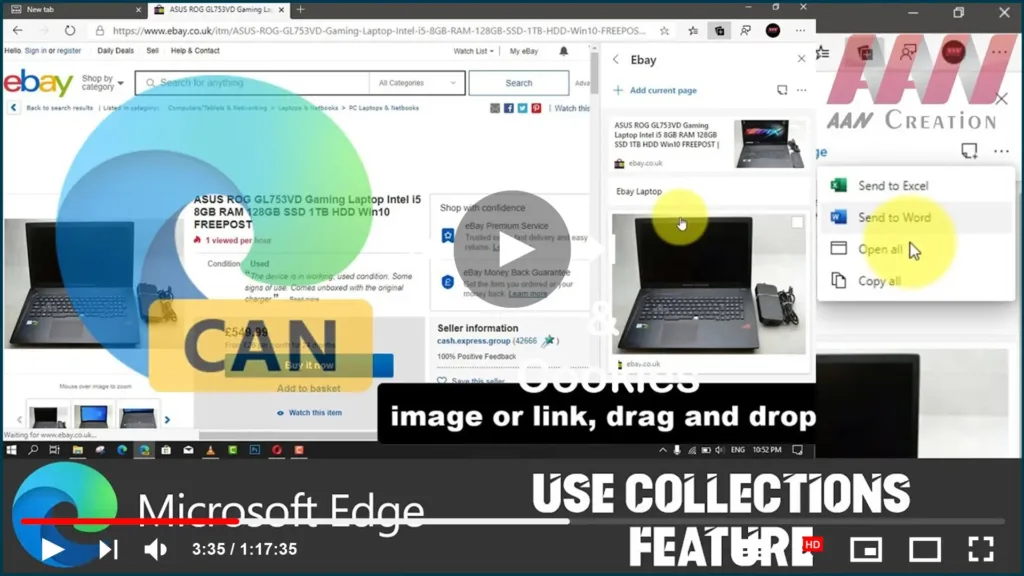

help you to collect text, images, videos, and other content into a note
page.
where you can drag and drop web content. It’ll format the content
correctly, and it’ll even add a footnote with link references to the
sources that you used.
for anything. If you shop online, the feature will help you collect and
compare products. If you’re a teacher or student, Collections can help you
organize your web research and create your lesson plans. Or if you’re an
event or trip organizer, it’ll help to group all the info you need as well
as ideas to plan your event or trip.
enable it manually to give it a try in the latest Canary version of the
browser.
Microsoft Edge for Windows 10.
Use these steps to start collecting information with Microsoft
Edge:
01. Open Microsoft Edge.
02. Click the Collections button next to the address bar.
03. Click the Start new collection button.
04. Type a name for collection and press Enter.
05. Start visiting websites that you want to collect and click the Add
current page button. (As you visit new websites, the add button will shift
to the top of the list.)
06. Click the Note button to add notes about the current collection.
07. If you like an image or link, drag and drop it to add it to your
list.
(adsbygoogle = window.adsbygoogle || []).push({});

08. After you complete the steps, you can click the share button to export
everything to an Excel spreadsheet.
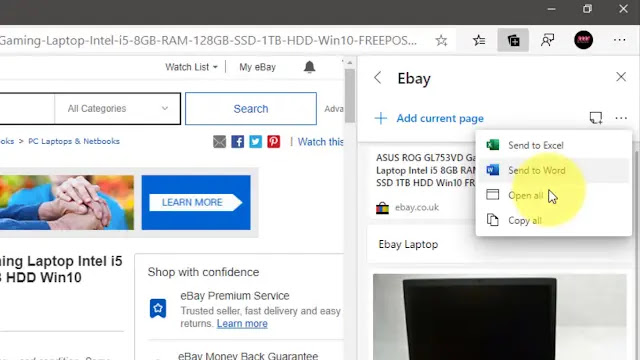
If the items on the list aren’t in the order that you like, you rearrange
them with the mouse. You can select each item and copy it to the clipboard,
export it, or delete it.
You can also add content from a webpage from the context menu. Select the
image, text, or hyperlink, right-click it, and select the Add to Collections
option. You can choose an existing collection to add to or start a new
one.

