
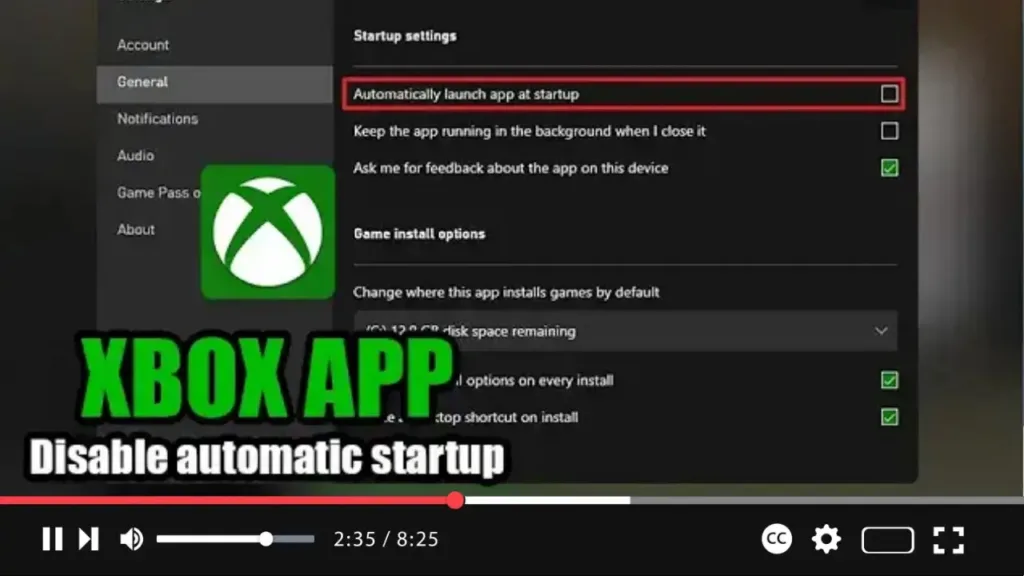

Do you find the Xbox app launching automatically every time you start your Windows 11 (or Windows 10) computer? While this feature can be convenient for some users, it may not be necessary for everyone. Thankfully, you can easily adjust the settings to stop the Xbox app from auto-starting.
In this video tutorial, we’ll guide you through the steps to prevent the Xbox app from launching automatically on Windows 11:
Step 01: Open the Xbox App: Begin by launching the Xbox app on your Windows 11 device. You can do this by locating the Xbox app icon in the Start menu or by searching for it in the search bar.
Step 02: Access Settings: Once the Xbox app is open, click on the profile menu located in the top-right corner of the window.
Step 03: Navigate to General Settings: From the dropdown menu, select the “Settings” option. This will take you to the general settings menu of the Xbox app.
Step 04: Adjust Startup Settings: Within the settings menu, navigate to the “General” tab.

Step 05: Disable Auto-Launch: Scroll down to the “Startup settings” section. Here, you’ll find the option labeled “Automatically launch app at startup.” Uncheck the box next to this option to prevent the Xbox app from launching automatically when you sign in to your Windows account.
Step 06: Disable Background Running (Optional): Additionally, if you wish to prevent the Xbox app from running in the background after you close it, uncheck the box next to “Keep the app running in the background when I close it.”
Once you’ve completed these steps, click on the “Save” or “Apply” button to confirm the changes. From now on, the Xbox app will no longer launch automatically when you sign in to your Windows 11 account after a reboot or cold start.

