

(adsbygoogle = window.adsbygoogle || []).push({});
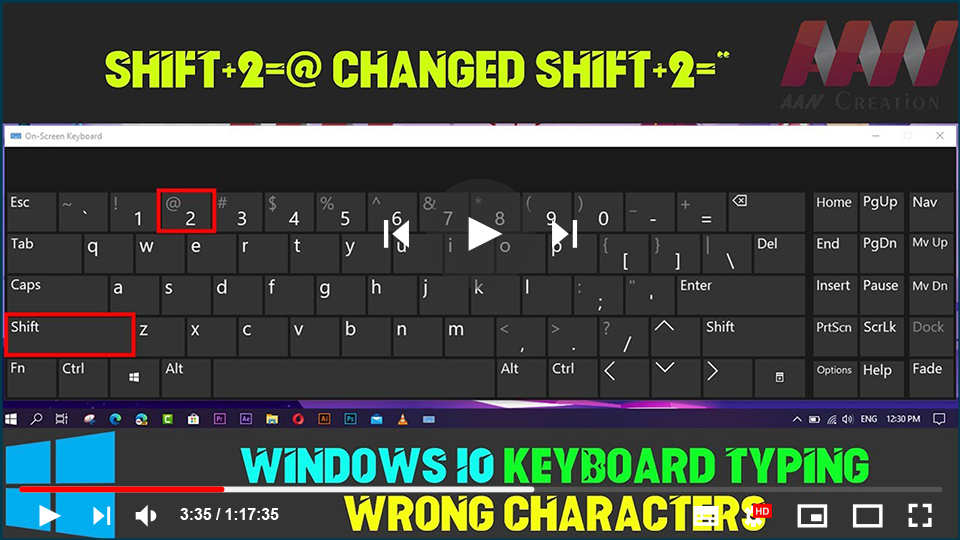
Are you typing something on your computer but seeing strange characters
appear on the screen? This problem may occur if you inadvertently configure
the incorrect system or keyboard settings. It could also be due to faulty
keyboard drivers. If you’re using a desktop device, the keyboard itself may
be an issue.
appear on the screen? This problem may occur if you inadvertently configure
the incorrect system or keyboard settings. It could also be due to faulty
keyboard drivers. If you’re using a desktop device, the keyboard itself may
be an issue.
Here are the best ways to repair that keyboard so you can keep typing
without interruption.
without interruption.
1. Quick Keyboard Repairs for a Desktop Computer
Before attempting detailed troubleshooting fixes, it is best, to begin
with, a few quick fixes. Let’s look at some simple keyboard fixes you can
try on your desktop device.
with, a few quick fixes. Let’s look at some simple keyboard fixes you can
try on your desktop device.
01. Unplug your keyboard, wait a while, and then plug it back on. If the
problem persists, connect the keyboard to a different USB port.
problem persists, connect the keyboard to a different USB port.

02. Try plugging the keyboard on another computer. This will assist you in
determining whether the issue is with software or hardware. If the problem
persists on another PC, you should consider replacing the keyboard.
determining whether the issue is with software or hardware. If the problem
persists on another PC, you should consider replacing the keyboard.
2. Configure Your Language Settings
This problem may occur if you unintentionally change the language
settings on your keyboard. In this case, here’s how you can fix the
problem by configuring your language settings:
settings on your keyboard. In this case, here’s how you can fix the
problem by configuring your language settings:
01. Type Edit language and keyboard options in the Windows Search bar
and select the Best match.
and select the Best match.
02. Press the Windows display language drop-down menu and select your
preferred language.
preferred language.
03. If you can’t find your preferred language, click the Add a
language button under the Preferred languages option and choose your
language pack. Select your language as you did in the previous
steps.
language button under the Preferred languages option and choose your
language pack. Select your language as you did in the previous
steps.

04. Next, scroll down on the same window and select the Advanced
keyboard settings option.
keyboard settings option.
05. Click the drop-down menu under the Override for the default input
method option and select your preferred language.
method option and select your preferred language.
3. Set Your Language Preferences Using the Registry
Editor
Editor
Another option for resolving this issue is to change your keyboard
settings in the Registry Editor. Here’s how you can do this:
settings in the Registry Editor. Here’s how you can do this:
01. Click the Windows Search bar, type regedit, & Choose the
Best match.
Best match.
02. Navigate to Computer on the Registry Editor’s left-hand side
window > HKEY_USERS > .DEFAULT > Keyboard Layout >
Preload.
window > HKEY_USERS > .DEFAULT > Keyboard Layout >
Preload.
03. On the right-hand side, double-click the string labeled 1 (one)
to modify it.
to modify it.
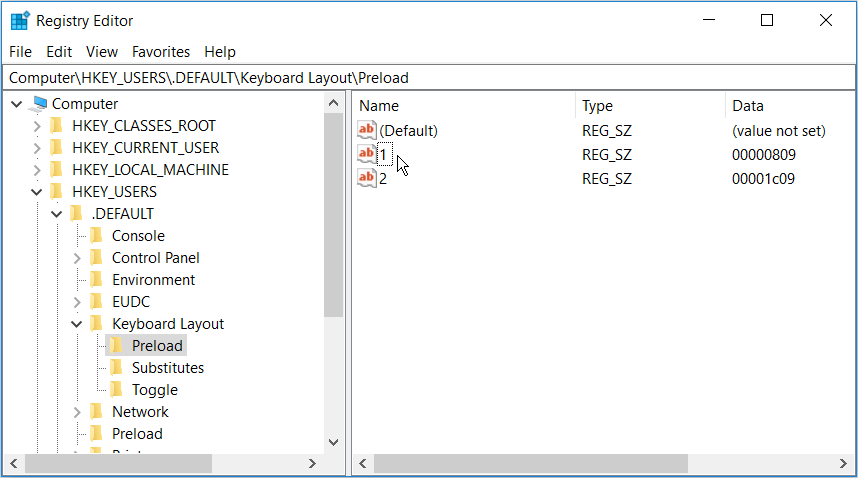
In the next window, you will input a value in the Value data box to
configure the language settings. To do so, select a value from the
options listed below:
configure the language settings. To do so, select a value from the
options listed below:
* 00000409 – English (United States)
* 00000809 – English (United Kingdom)
* 00001009 – English (Canada)
* 00001409 – English (New Zealand)
* 00000c09 – English (Australian)
These are the values for some of the most commonly used English
language regions. The complete list of available values can be found
in the Microsoft Default Input Profiles documentation. Copy and
paste the eight-character string after the colon into the Value data
box.
language regions. The complete list of available values can be found
in the Microsoft Default Input Profiles documentation. Copy and
paste the eight-character string after the colon into the Value data
box.

Click OK to exit the Registry Editor & restart your computer.
4. Run the Keyboard Troubleshooter
The Windows Keyboard troubleshooter may also be useful in resolving
this issue. Here’s how you can put this tool to use:
this issue. Here’s how you can put this tool to use:
01. Type Troubleshoot in the Windows Search bar and select the Best
match.
match.
02. Click Keyboard and press the Run the Troubleshooter button.
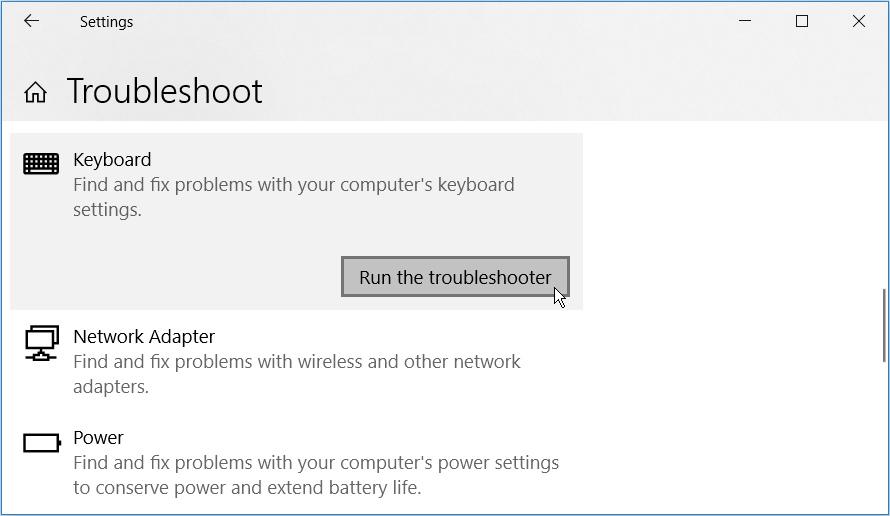
03. Restart your PC when the process is complete.
5. Update or Reinstall Your Keyboard Drivers
Corrupted network drivers could be the source of this problem. In
this case, you’ll need to update or reinstall these drivers to
resolve the problem.
this case, you’ll need to update or reinstall these drivers to
resolve the problem.
Here’s how to get your keyboard drivers updated:
01. Press the Windows Key + X and select Device Manager in the
pop-up menu.
pop-up menu.
02. Double-click the Keyboards option to expand it.
03. Right-click the Keyboard driver and select Update Driver.
Restart your PC when the process is finished.
Restart your PC when the process is finished.
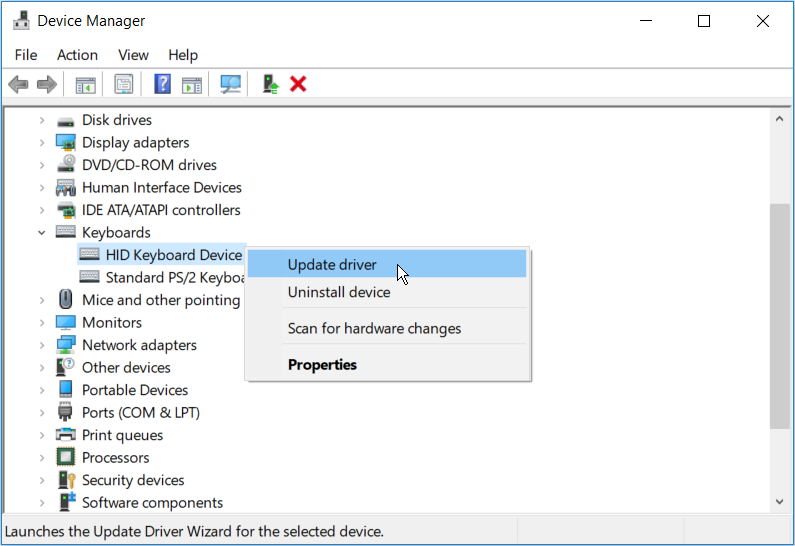
If the issue persists, try reinstalling the Keyboard drivers
instead. Here’s how you can do this:
instead. Here’s how you can do this:
01. Open the Device Manager and the Keyboard drivers as per the
previous steps.
previous steps.
02. Right-click the Keyboard driver and select Uninstall
device.
device.
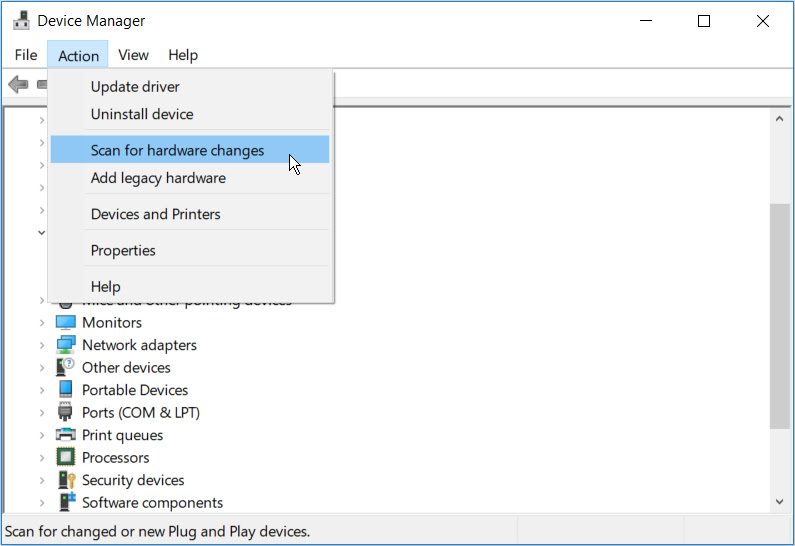
03. Finally, navigate to the Action tab and press Scan for
hardware changes.
hardware changes.
(adsbygoogle = window.adsbygoogle || []).push({});
Restart your PC. This should reinstall the keyboard drivers
automatically.
automatically.
Reinstall your keyboard and begin typing again.
Work, assignments, and anything else will be difficult to
complete if you don’t have a functional keyboard. Use any of
the methods in this article to repair a broken keyboard. If
everything else fails, you might think about updating your
Windows 10 PC or even replacing your keyboard entirely.
complete if you don’t have a functional keyboard. Use any of
the methods in this article to repair a broken keyboard. If
everything else fails, you might think about updating your
Windows 10 PC or even replacing your keyboard entirely.

