
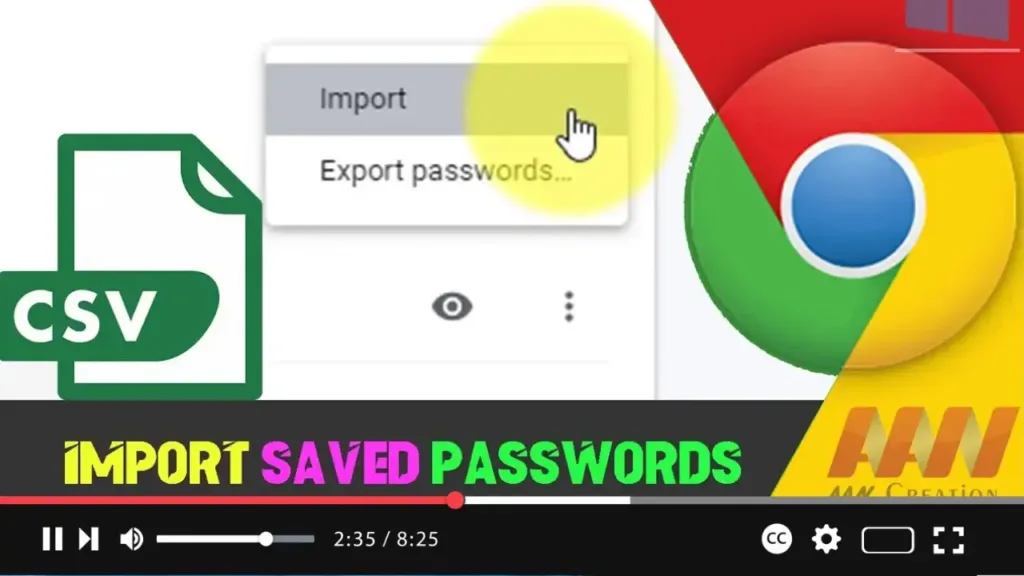

Importing passwords into Google Chrome can save you time and ensure a smooth transition from another browser or password manager. This guide will walk you through the steps to import passwords into Google Chrome on Windows 10.
Introduction
Google Chrome offers a built-in password manager that allows you to import passwords from a CSV file. This feature is especially useful if you are migrating from another browser or password manager and want to have all your saved passwords readily available in Chrome.
Steps to Import Passwords on Chrome Browser
Step 01: Enable Password Import Flag
Open Google Chrome on your Windows 10 device.
In the address bar, type chrome://flags and press Enter.
In the search box at the top of the Flags page, type “password import.”
Find the “Password import” flag and select “Enabled” from the dropdown menu.
Click on the “Relaunch” button that appears at the bottom of the page to restart Google Chrome and apply the changes.
.webp)
Step 02: Prepare Your Passwords CSV File
Ensure you have a CSV file containing the passwords you want to import. The file should have columns for “name,” “url,” “username,” and “password.”
Here is an example of how the CSV file should be structured:
name,url,username,password
Example,https://www.example.com,user@example.com,password123
.webp)
Step 03: Access Password Settings
Open Google Chrome on your Windows 10 device.
Click on the three vertical dots (menu icon) located at the top-right corner of the browser.
Select “Settings” from the drop-down menu.
Scroll down and click on “Autofill” in the left-hand sidebar.
Click on “Passwords.”
Step 04: Import Passwords
In the Passwords section, click on the three vertical dots (more options) next to “Saved Passwords.”
Select “Import” from the dropdown menu.
Navigate to the location of your CSV file, select it, and click “Open.”
Chrome will import the passwords from the CSV file into its password manager.
.webp)
Additional Information
Benefits of Importing Passwords
- Convenience: Importing passwords saves time and effort compared to manually entering each password.
- Consistency: Ensures all your saved passwords are available across different devices and browsers.
- Security: Allows you to use Chrome’s built-in security features, such as password alerts and suggestions, with your imported passwords.
Considerations
- CSV Format: Ensure the CSV file is correctly formatted, as an improperly structured file may cause import issues.
- Security: Keep your CSV file secure, as it contains sensitive information. Delete the file after importing passwords to prevent unauthorized access.
- Backup: Consider keeping a backup of your passwords in a secure location before importing them.
Conclusion
Importing passwords into Google Chrome is a straightforward process that can greatly enhance your browsing experience by ensuring all your saved passwords are easily accessible. By following the steps outlined above, you can quickly and efficiently import passwords into Chrome on your Windows 10 device. If you encounter any issues, ensure the CSV file is correctly formatted and that the Password import flag is enabled.

