
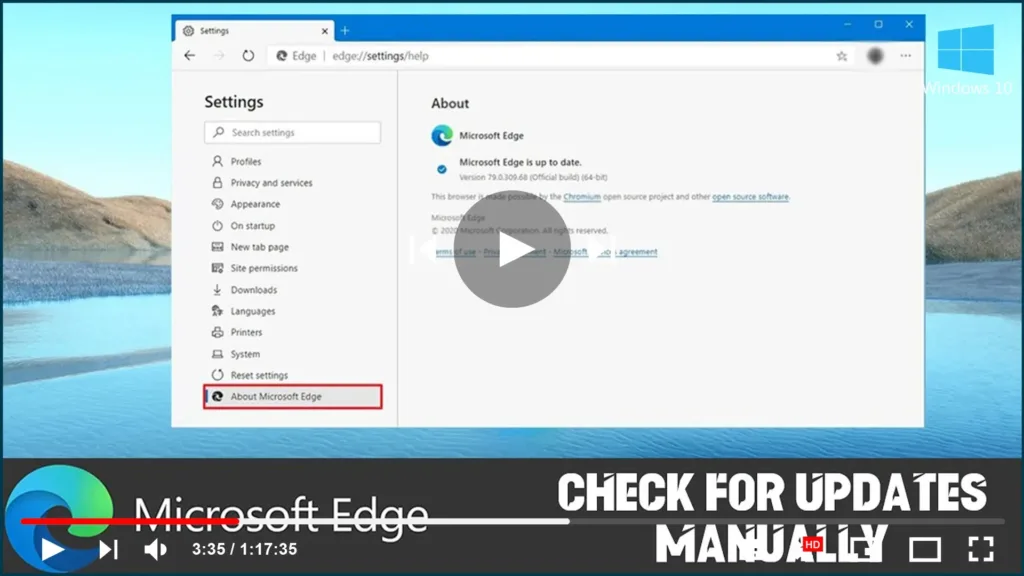

Are you using the most recent version of Microsoft Edge? Here’s how you
check for updates.
check for updates.
Because the new version of Microsoft Edge based on the Chromium engine is
no longer included with Windows 10, Microsoft can update its new browser
independently as soon as enhancements and new features are ready.
no longer included with Windows 10, Microsoft can update its new browser
independently as soon as enhancements and new features are ready.
Although updates should be delivered automatically every six weeks, you
can ensure that your device is up to date by manually checking for
updates.
can ensure that your device is up to date by manually checking for
updates.
In this video, you’ll learn how to manually check for, download, and
install updates for Microsoft Edge’s Chromium version on Windows 10.
install updates for Microsoft Edge’s Chromium version on Windows 10.
To manually check for updates in Microsoft Edge’s Chromium version,
follow these steps:
follow these steps:
01. Open Microsoft Edge.
02. In the top-right corner, click the Settings and More (three-dotted)
button.
button.
03. Click on Settings.
04. Click on About Microsoft Edge.

(adsbygoogle = window.adsbygoogle || []).push({});
05. If an update is available, the browser will download it
automatically.
automatically.
06. Click the Restart button.
When you finish the steps, Microsoft Edge will update to the most recent
version, which may include improvements and new features.
version, which may include improvements and new features.
If an update is available automatically, a green badge notification will
appear in the Settings and more button, and you will only need to restart
the browser to apply it.
appear in the Settings and more button, and you will only need to restart
the browser to apply it.
This guide focuses on Windows 10, but the instructions will also work on
Windows 8.x, Windows 7, macOS, and other supported operating
systems.
Windows 8.x, Windows 7, macOS, and other supported operating
systems.

