

Few people can effortlessly write without errors. To get it right, most of
us must draft and revise multiple times. But, as with most problems these
days, there’s an app for that. Grammarly! is its name. Let’s take a look at
this writing software, how it works, what it has to offer, and how to use
Grammarly in other programs.
us must draft and revise multiple times. But, as with most problems these
days, there’s an app for that. Grammarly! is its name. Let’s take a look at
this writing software, how it works, what it has to offer, and how to use
Grammarly in other programs.
What Is Grammarly?
Grammarly is a great writing assistant that scans your text for
grammar and spelling errors.
grammar and spelling errors.
This online text editor uses artificial intelligence to detect
grammatical and punctuation errors, passive voice, and overly long
sentences. It then suggests appropriate substitutions to help you
improve your writing.
grammatical and punctuation errors, passive voice, and overly long
sentences. It then suggests appropriate substitutions to help you
improve your writing.
How Does Grammarly Work?
(adsbygoogle = window.adsbygoogle || []).push({});
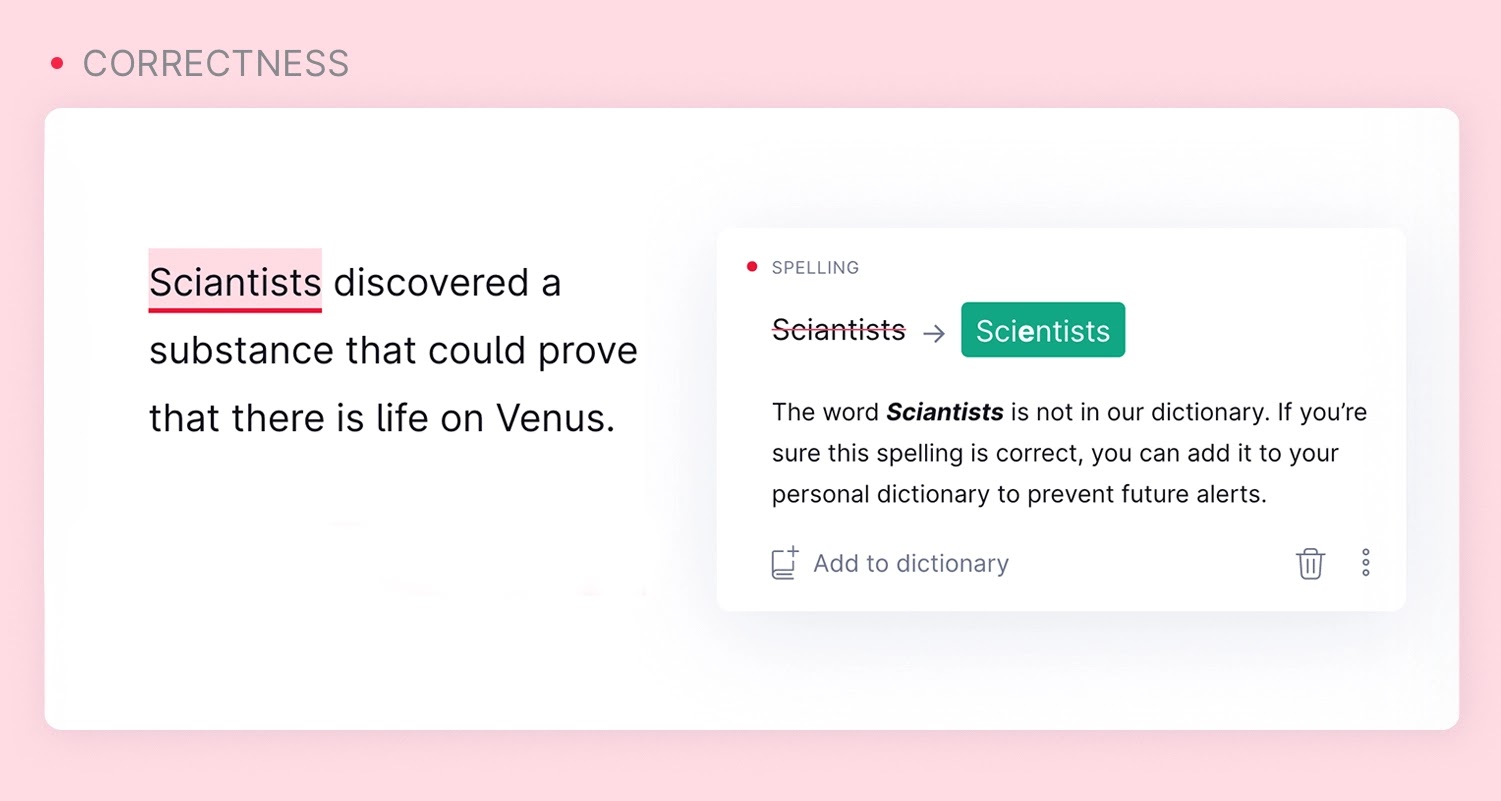
Grammarly works by ensuring that everything you write is spelled
correctly and is clear and concise, and easy to read. Grammarly
makes suggestions to help you improve where your work is
lacking. Furthermore, it includes an in-built dictionary to not
only ensure correct spelling but also to eliminate repetitions.
correctly and is clear and concise, and easy to read. Grammarly
makes suggestions to help you improve where your work is
lacking. Furthermore, it includes an in-built dictionary to not
only ensure correct spelling but also to eliminate repetitions.
This writing app also evaluates readability. It provides you
with a clarity score that indicates how easy your text is to
read. Grammarly recommends that users aim for a score of 60 or
higher, but if you fall below that, the program will suggest
changes.
with a clarity score that indicates how easy your text is to
read. Grammarly recommends that users aim for a score of 60 or
higher, but if you fall below that, the program will suggest
changes.
Apart from being completely comprehensive, one of the best
aspects of Grammarly is that it is available on a free or paid
(Grammarly Premium) subscription plan.
aspects of Grammarly is that it is available on a free or paid
(Grammarly Premium) subscription plan.
How To Use Grammarly?
So you know how Grammarly works, but did you know you can
use it directly from other programs?
use it directly from other programs?
If you want to learn more, let’s step right into how to
use Grammarly in other programs.
use Grammarly in other programs.
How to use Grammarly in Word?
If you use Microsoft Word frequently, you’re
probably familiar with its built-in spell-checker.
However, because this feature is fairly basic,
here’s how to use Grammarly in Word if you’re
looking for a more comprehensive editor.
probably familiar with its built-in spell-checker.
However, because this feature is fairly basic,
here’s how to use Grammarly in Word if you’re
looking for a more comprehensive editor.
The installation procedure is extremely simple. So
let’s get started:
let’s get started:
Installation
Here are the installation instructions for
Windows computers.
Windows computers.
* To begin, sign in to your Grammarly account.
* Select the ‘Apps’ option from the left-side
toolbar.
toolbar.
* Scroll down to ‘Grammarly For Microsoft
Office,’ then click ‘Install.’
Office,’ then click ‘Install.’
* After you’ve downloaded the app, you’ll need
to run the file.
to run the file.
* You can install either Grammarly for Word or
Grammarly for Outlook, or both.
Grammarly for Outlook, or both.
* When the installation is complete, you can
begin using Grammarly for Word. All you have
to do is launch Microsoft Word.
begin using Grammarly for Word. All you have
to do is launch Microsoft Word.
Grammarly for Mac is a little more difficult
to install. What you must do is as follows:
to install. What you must do is as follows:
* Open Microsoft Word on your computer
* Click the ‘Insert’ button in the menu bar.
* Next, choose the ‘Get Add-ins or Store’
option. You’d then be able to look for
Grammarly. When you’ve found it, press the
‘Add’ button.
option. You’d then be able to look for
Grammarly. When you’ve found it, press the
‘Add’ button.
* After that, a Grammarly tab is added to
Microsoft Word, and you can begin using it
right away.
Microsoft Word, and you can begin using it
right away.
Setting and usage
You can customize the Grammarly
online checker to suit your writing
needs after successfully installing
it in Microsoft Word.
online checker to suit your writing
needs after successfully installing
it in Microsoft Word.
To accomplish this, open a new Word
document and click the ‘Enable
Grammarly’ button.
document and click the ‘Enable
Grammarly’ button.
You can also access the Grammarly
settings sidebar by clicking on the
Grammarly icon. There, you can set
writing goals and select your tone,
formality, and intent. You can also
enable its built-in plagiarism
checker and specify the types of
errors the program should look for.
settings sidebar by clicking on the
Grammarly icon. There, you can set
writing goals and select your tone,
formality, and intent. You can also
enable its built-in plagiarism
checker and specify the types of
errors the program should look for.
How to use Grammarly in Google
Docs?
.webp)
Google Docs, like Microsoft
Word, includes its own
spell-checker and editor.
However, it is not as thorough
as the Grammarly text checker.
Word, includes its own
spell-checker and editor.
However, it is not as thorough
as the Grammarly text checker.
So, let’s see how to add
Grammarly to Google Docs!
Grammarly to Google Docs!

