
If you changed the background of your Windows 10 desktop several
times, the images you used will be displayed in the Choose your picture in
the Settings section. If you want to remove previous wallpapers and clear
the used desktop background history, Windows 10 does not provide a way to do
so! In this article, we’ll look at how to clear the history of previously
used desktop background images in Windows 10.
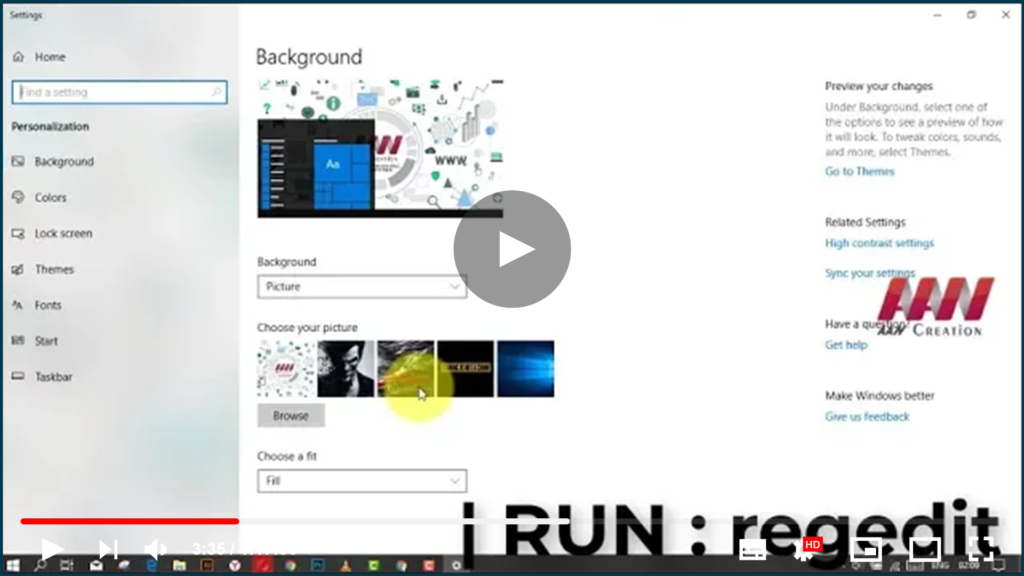
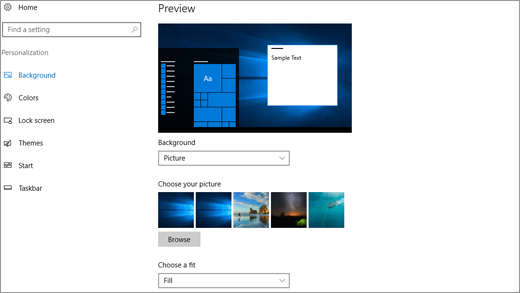
Under “Choose your picture,” Windows 10 displays the last five wallpapers.
To see it, open Settings & go to Personalization ➡️
Background.
To see it, open Settings & go to Personalization ➡️
Background.
(adsbygoogle = window.adsbygoogle || []).push({});
Unfortunately, there is no way to quickly remove the images from the
history. The only way to do it is to manually edit the Registry. Here’s how
you can do it.
To clear wallpaper history in Windows 10
01. Close Settings if you have it running.
02. Open the Registry Editor app.
03. Go to the following Registry key.
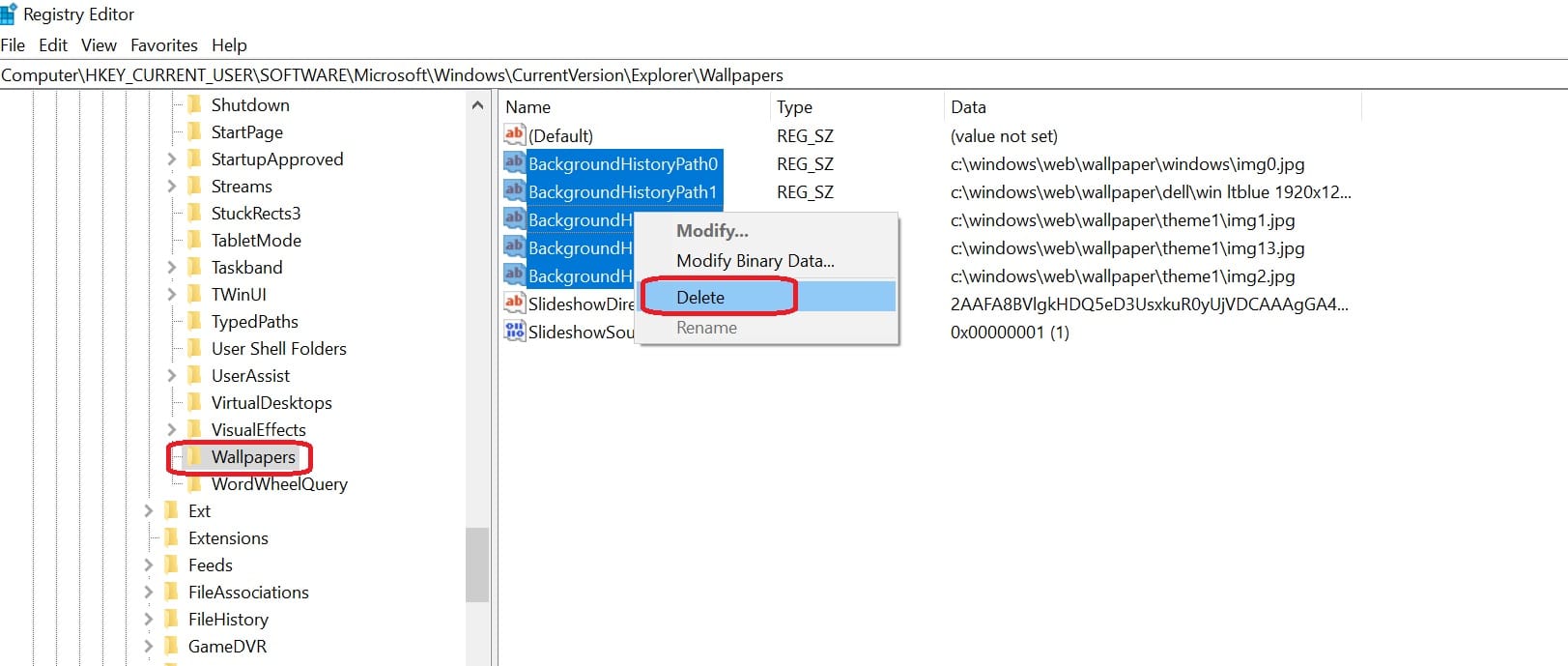
HKEY_CURRENT_USERSoftwareMicrosoftWindowsCurrentVersionExplorerWallpapers
04. On the right, see the string values BackgroundHistoryPath0 –
BackgroundHistoryPath4. They keep track of the paths to your most
recently used wallpapers. Remove the desired values, and you’re
finished!
BackgroundHistoryPath4. They keep track of the paths to your most
recently used wallpapers. Remove the desired values, and you’re
finished!
To remove the history completely.

