

You’ve connected your PC to a wifi network some time ago (maybe a long time
ago) and now you want to connect another device, like a laptop, tablet, or
smartphone to the same wireless network. but you forgot the password.
This also happened to me once and it probably happens to other people also.
Fortunately, there’s an easy and quick way to look up your password and this
tutorial will show you how to do this on a Microsoft Windows PC.
Note: You will need to replace MyNetworkName with the name of the
wireless network.
wireless network.
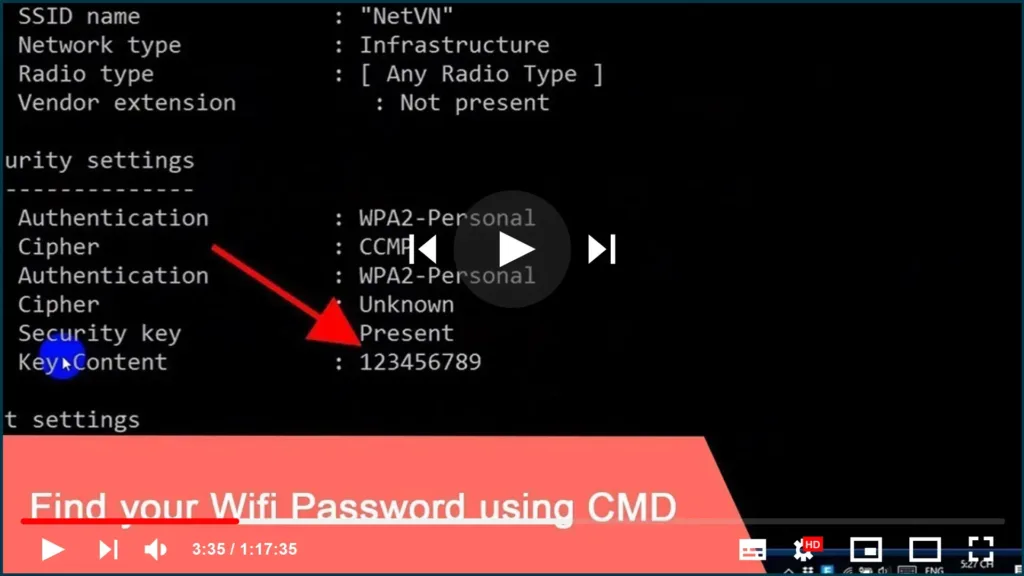
The password of the WiFi network will appear at Key Content. Find Wi-Fi
Password of your Current Network with Windows Command Prompt
How to find your wifi password in Windows 7, 8.1, and 10.
In Windows 10, you right-click on the wireless network icon in the system
tray, select Open Network & Internet settings, then you scroll down and
click on Network and Sharing Center
(adsbygoogle = window.adsbygoogle || []).push({});
01. Open Network and Sharing Center in Windows.
02. Click on the name of the current Wi-Fi connection.
Open Wi-Fi Connection Properties
3. Click on Wireless Properties.
4. Open the Security tab.
5. Under the Network security key, you check the Show characters option.
Show Network Security Key in WindowsWindows will now show you the password.

You can use Search and type CMD. Right-click on Command Prompt and select Run As Administrator.
Type the following command line and hit Enter:
NETSH WLAN SHOW PROFILE
You will see a list of WLAN profiles stored on the PC. Take note of the
network name you’d like to explore.
Type the following command and replace “WIFI” with the network name.

NETSH WLAN SHOW PROFILE WIFI KEY=CLEAR
Completing these steps successfully will bring up the WLAN profile of the network you want to connect to. Scroll down and you’ll find the password
under the Key Content field.

