
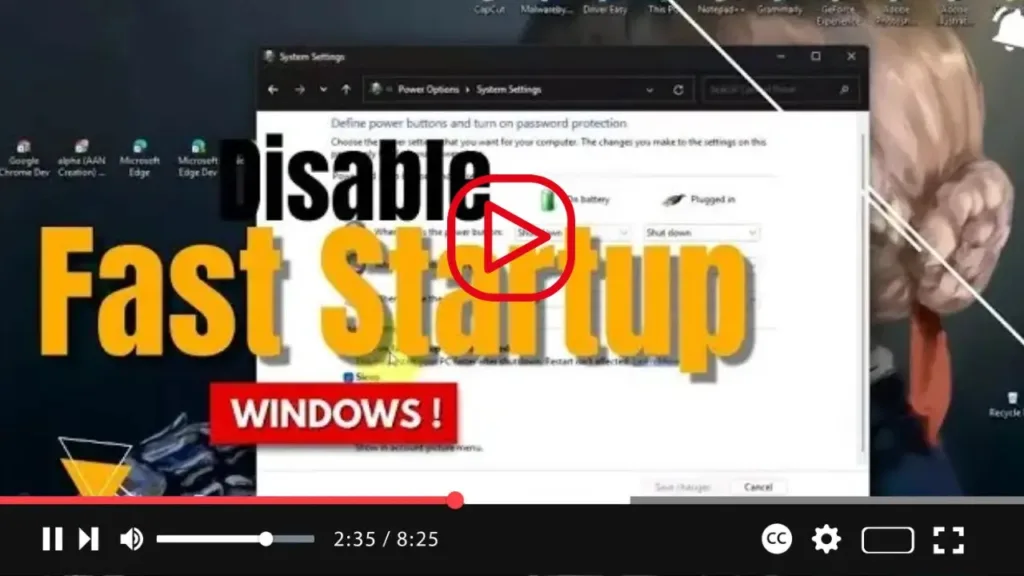

Hey there, Windows users! Looking to manage your system’s boot process by disabling the “Fast Startup” feature? You’re in luck! Whether you’re on Windows 11 or Windows 10, you have multiple methods to accomplish this task. In this guide, I’ll walk you through the process using the Control Panel Power Options settings, as well as Command Prompt, since this feature isn’t available through the Settings app.
But first, let’s understand what Fast Startup entails. It’s a nifty feature designed to expedite the boot process by merging hibernation and regular shutdown procedures. Essentially, when enabled, the system saves essential components like the kernel, drivers, and system state to the hibernation file (hiberfil.sys). Upon shutdown, it doesn’t save the current desktop session or running apps. Then, during startup, it loads the contents from the hibernation file for a quicker resume.
.webp)
However, while Fast Startup offers benefits, it can also pose challenges. It may lead to conflicts during updates, encryption management for storage devices, or in dual-boot setups where access to drives from other configurations is restricted. In some instances, enabling Fast Startup might even prevent access to the motherboard’s UEFI (BIOS).
Now, let’s dive into the steps to enable or disable Fast Startup on Windows 11 (and Windows 10):
- Open the Start menu on your Windows 11 system.
- Search for “Control Panel” and select the top result to launch the app.
- Within Control Panel, navigate to “Power Options.”
- Click on “Choose what the power button does” from the left pane.
- Next, select “Change settings that are currently unavailable.”
- You’ll now see the option to toggle “Turn on fast startup.” Clear this option to disable the feature.
.webp)
Once you’ve completed these steps, Fast Startup will be disabled, allowing for a different boot experience.
By following these simple steps, you can effectively manage the Fast Startup feature on your Windows 11 (or Windows 10) system. Whether you’re troubleshooting compatibility issues or simply prefer a traditional boot process, this guide has you covered.

