
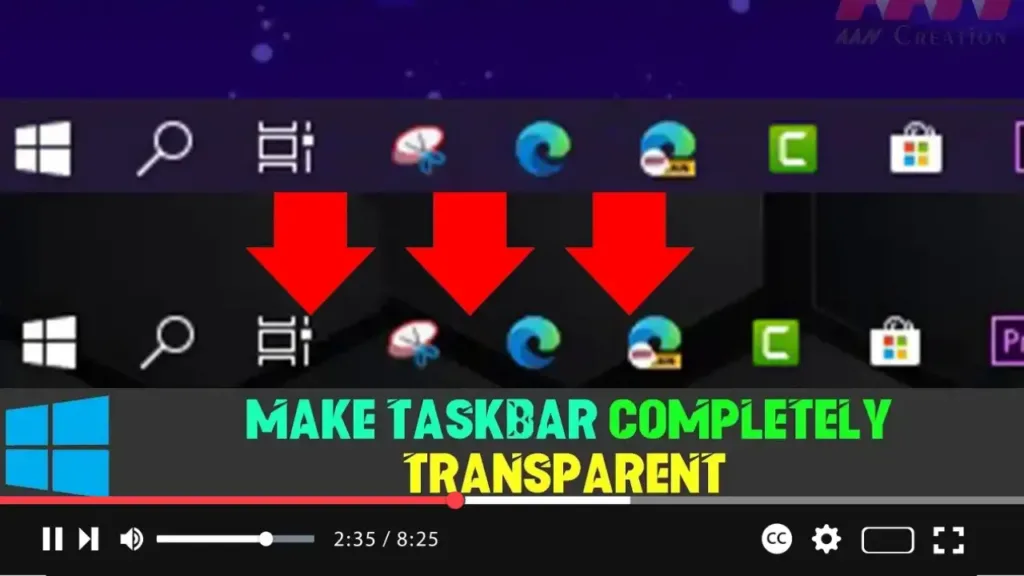

Windows 10 offers many ways to personalize your experience, including options to customize the taskbar. You can control which icons appear in the notification area, set the taskbar to auto-hide, or even enable basic transparency. However, one limitation is that you cannot make the taskbar fully transparent or apply advanced visual effects like frosted glass natively.
Fortunately, third-party tools such as TranslucentTB can be used to achieve a fully transparent taskbar or give it a frosted glass appearance.
Important Note
Before using any third-party software, be aware that it comes with certain risks. Although TranslucentTB is widely trusted and functions properly, third-party tools can sometimes cause issues. Ensure you understand the risks and use the tool at your own discretion.
Step-by-Step Guide to Make the Taskbar Transparent Using TranslucentTB
Step 01: Download TranslucentTB from GitHub.
- Visit the following link to access the download page: TranslucentTB on GitHub.
- Direct download link: Download TranslucentTB.exe.
.webp)
Step 02: Install TranslucentTB.
- Right-click the TranslucentTB.exe file you downloaded and follow the installation steps.
Step 03: Customize Taskbar Settings.
- Once installed, right-click the TranslucentTB icon in the system tray (notification area) to access its settings.
- You can change the appearance of your taskbar by selecting from a range of options, including full transparency, blurred, or a frosted glass effect.
Step 04: Reboot Your System.
- Once you’ve set your preferences, TranslucentTB will automatically launch every time you reboot your computer and retain the taskbar settings you’ve chosen.
.webp)
Final Thoughts
Using TranslucentTB, you can fully personalize the Windows 10 taskbar to make it transparent or apply other visual effects. While it’s a straightforward and popular tool, ensure you’re comfortable using third-party applications. Some antivirus programs may flag the tool, but it has been widely tested and trusted by many users. If you’re unsure, consider skipping this customization.

