
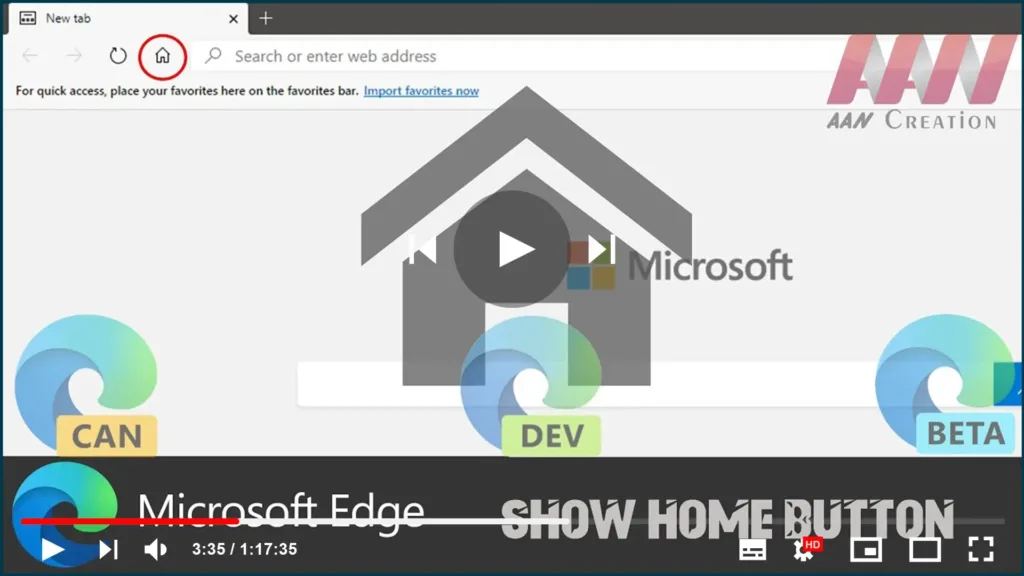

Although the new version of Microsoft Edge is similar to the previous
version of the browser for Windows 10, settings and some elements are
scattered in different places.
version of the browser for Windows 10, settings and some elements are
scattered in different places.
If you’re new to Edge Chromium, you’ve probably noticed that the home
button is missing from the top bar, but that’s only because it’s a
manually enabled and configured option.
button is missing from the top bar, but that’s only because it’s a
manually enabled and configured option.
In this guide, you’ll learn how to show the home button on Microsoft Edge
between the reload and address bar.
between the reload and address bar.
To show the home button on the Chromium version of Edge, use these
steps.
01. Open Microsoft Edge.
02. Click the Settings and More (three-dotted) button on the top-right
corner.
03. Select the Settings option.
04. Click on Appearance.
05. Turn on the Show home button toggle switch.
(adsbygoogle = window.adsbygoogle || []).push({});

06. Select the default action of the home button.
* New Tab page — When the button is pressed, it opens a new tab
page.
page.
* Enter URL — allows you to specify a website as your default home site.
Usually, you want to set your favorite search engine website (Google or
Bing).
Usually, you want to set your favorite search engine website (Google or
Bing).
Once you complete the steps, the home button should appear next to the
address bar of Microsoft Edge.
address bar of Microsoft Edge.

