
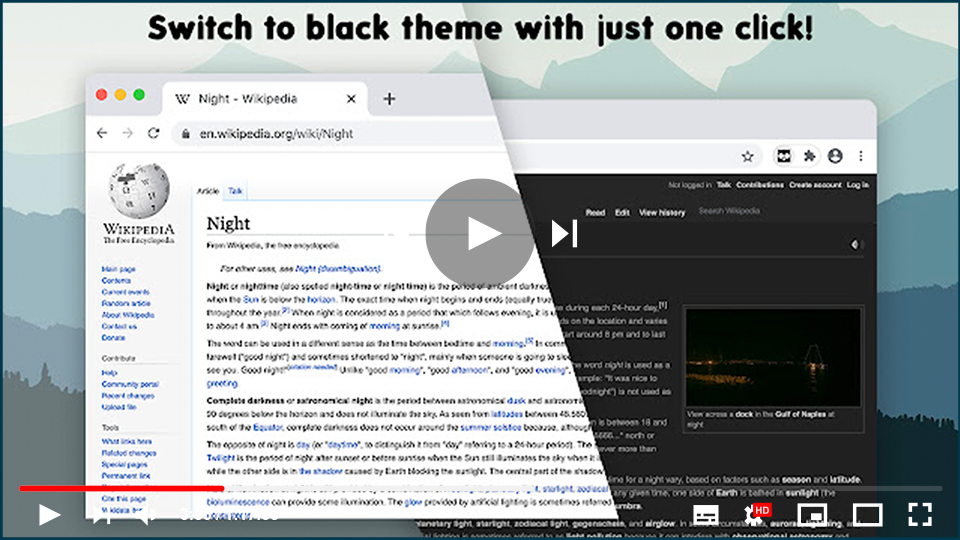

Dark Theme for all websites in Chrome browser with the opportunity
to exclude any domain or create a custom theme.
If you’re someone who prefers a dark theme for websites to reduce eye strain, especially in low-light conditions, Chrome offers a convenient way to enable dark mode across all websites. With a dark theme extension, you can apply a consistent dark mode to every site you visit and even exclude certain websites or create custom themes for specific pages.
Here’s how you can enable a dark theme for all websites in Chrome and manage customization options like domain exclusions or custom color themes:
Step 01: Install the Dark Theme Extension
To get started, you need to install a dark theme extension for Chrome. This extension will automatically apply a dark mode to all websites and allow for further customization. You can download it from the Chrome Web Store by clicking “Add to Chrome” for the selected dark theme extension.
Step 02: Apply the Dark Theme to All Websites
Once installed, the extension will apply a dark theme to every website you visit, covering social media platforms, mainstream websites, and even New Tab pages. You won’t have to adjust each site manually. The theme ensures a black background and contrasting text across the entire browsing experience.
Step 03: Exclude Specific Domains from the Dark Theme
If there are certain websites where you prefer not to have a dark theme (such as a website that already has a well-designed dark mode or one that doesn’t display well in dark mode), you can exclude them. Here’s how to exclude a domain:

(adsbygoogle = window.adsbygoogle || []).push({});
- Open the extension settings.
- Navigate to the “Site Exclusion” option.
- Enter the website URL you want to exclude, and the dark theme will no longer be applied to that site.
Step 04: Customize Your Theme
If you want a unique look, the extension offers a “Theme Changer” option where you can create and customize your own theme. Choose different colors for backgrounds, text, and links to match your style.
- Access the Theme Changer in the extension settings.
- Adjust colors for backgrounds and text to create a custom theme.
- Save your custom theme for future use, and apply it whenever you want.
Step 05: Managing Dark Theme for New Tabs
By default, Google Chrome doesn’t allow extensions to modify the default new tab page, but this dark theme extension provides a solution by creating a custom dark-themed new tab. If you want to enable or disable the dark mode for new tabs:
- Open the extension’s settings menu.
- Find the “Apply for New Tab” option, and toggle it on or off depending on your preference.
- If enabled, your new tabs will have a dark background with easy access to your saved bookmarks and useful shortcuts.
Step 06: Advanced Settings and Control
The extension allows for easy management of settings. You can:
- Quickly enable or disable the dark mode for specific sites using the site exclusion feature.
- Create, rename, and apply different custom themes whenever you like.

Version 1.4.0 Improvements
With version 1.4.0, the dark mode functionality has been extended to support the New Tab page, providing a dark mode for newly opened tabs. The extension replaces the original tab, offering a consistent dark mode interface that includes your bookmarks and other features.
Final Notes:
- Manage New Tab Settings: You can revert to the default Chrome settings for new tabs at any time by going to the extension’s settings page.
- Privacy and Terms of Use: By installing the dark theme extension, you agree to its Terms of Use and Privacy Policy, ensuring your data remains secure.
Now, with just one extension, you can enjoy a dark mode across all websites in Chrome, improving readability and reducing eye strain, while also retaining full control over customization.

