
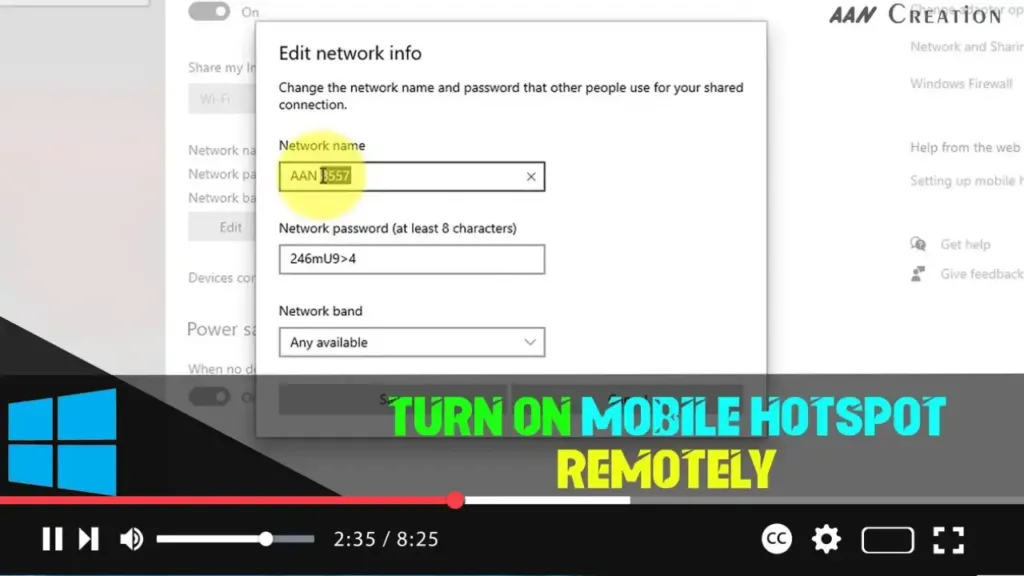

Windows 10 allows you to turn on the mobile hotspot feature remotely, which can be useful for sharing your internet connection with other devices. This guide will show you how to enable or disable this feature.
Introduction
The mobile hotspot feature in Windows 10 lets you share your internet connection with other devices over Wi-Fi. Enabling or disabling the option to turn on mobile hotspot remotely can be done through the settings menu.
Steps to Enable or Disable Turn On Mobile Hotspot Remotely
Step 01: Open the Settings Menu
First, open the Settings menu by pressing the Windows key + I.
Step 02: Navigate to the Network & Internet Settings
In the Settings window, click on “Network & Internet.”
Step 03: Access Mobile Hotspot Settings
In the “Network & Internet” settings, select “Mobile hotspot” from the left sidebar.
.webp)
Step 04: Enable or Disable Remote Mobile Hotspot
In the Mobile hotspot settings, look for the option “Turn on remotely.” To enable remote mobile hotspot, switch the toggle to the “On” position. To disable it, switch the toggle to the “Off” position.
Step 05: Apply the Changes
The changes are applied automatically when you switch the toggle. Close the Settings window to complete the process.
.webp)
Additional Information
Mobile Hotspot Requirements: Ensure that your device has Wi-Fi capability and that the network adapter supports mobile hotspot functionality.
Remote Connection: To turn on the mobile hotspot remotely, you will need another device connected to the same Microsoft account and with Bluetooth enabled.
Troubleshooting
Hotspot Not Working: If the mobile hotspot feature is not working, ensure that your internet connection is active and that the Wi-Fi adapter is working properly. Restart your device if necessary.
Permissions: Make sure you have administrative permissions to change network settings.
By following these steps, you can easily enable or disable the option to turn on mobile hotspot remotely in Windows 10, providing flexibility in managing your network connections.

