
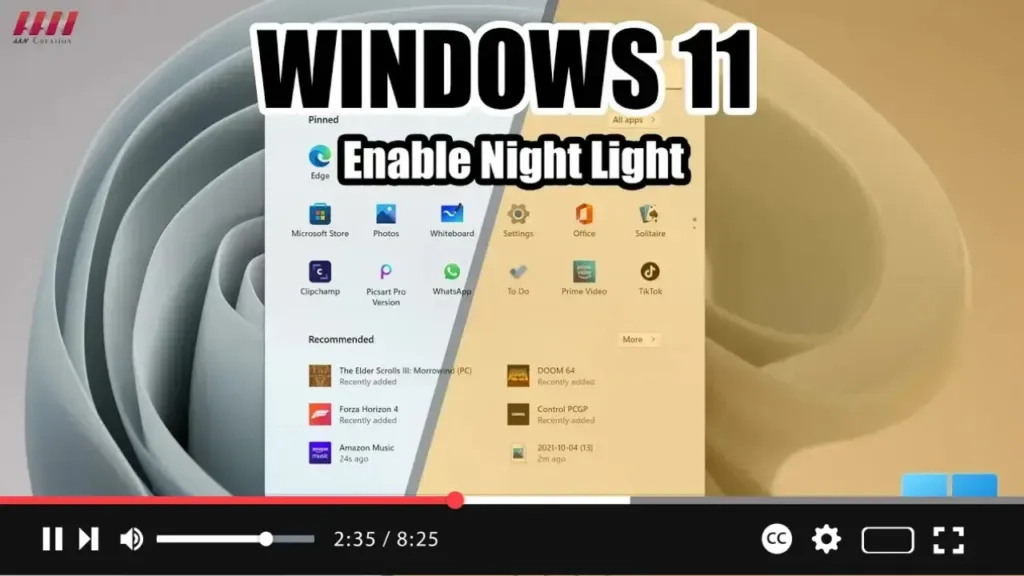

Windows 11 introduces several new features aimed at enhancing user experience, and one such feature is Night Light. Night Light reduces blue light emitted by your screen, which can help alleviate eye strain and improve sleep quality. In this guide, we’ll walk you through the steps to enable Night Light on Windows 11.
Step 1: Open Settings
Begin by clicking on the Start button and selecting the Settings icon to open the Settings app.
.webp)
Step 2: Navigate to Display Settings
Within the Settings app, click on the “System” icon, and then select the “Display” tab from the left-hand menu.
Step 3: Enable Night Light
Scroll down the Display settings until you find the “Night light” option. Click on the toggle switch next to it to enable Night Light.
.webp)
Step 4: Customize Night Light Settings
After enabling Night Light, you can customize its settings to your preferences. Click on the “Night light settings” link to access customization options. Here, you can adjust the strength of the Night Light effect, set a schedule for activation, and more.
Step 5: Preview the Night Light Effect
If you want to preview how the Night Light effect will appear on your screen, click on the “Preview” button. This allows you to see how colors on your screen will be affected by Night Light.
.webp)
That’s it! You’ve successfully enabled Night Light on Windows 11. Enjoy reduced eye strain and improved sleep quality, especially during late-night computer use.

