
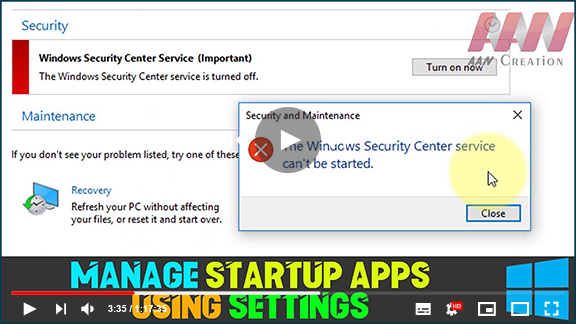

The Windows Security app relies on the Windows Security Service and the Windows Security Center Service (wscsvc) to provide up-to-date protection status. When you encounter the error message “The Security Center service can’t be started,” it can be frustrating. Here are several methods to resolve this issue.
Common Causes of the Error
- Misconfiguration: The Security Center may not be set to start correctly.
- Logon User Issues: The configured logon user for the Security Center might be incorrect.
- Malware Interference: Malware infections could prevent the service from starting or disable it after starting.
Method 1: Ensure Correct Configuration of the Security Center
-
Open Services:
- Press
Win + Rto open the Run dialog. - Type
services.mscand press Enter.
- Press
-
Locate Security Center:
- In the Services window, scroll down and find Security Center.
- Double-click on it to open its properties.
-
Set Startup Type:
- Go to the General tab.
- Select Automatic (Delayed Start) from the Startup type dropdown menu.
- Click the Start button if it is available, then click OK to apply the changes.
-
Check Related Services:
- If the Security Center cannot be started, ensure that the Remote Procedure Call (RPC) and Windows Management Instrumentation (WMI) services are running by following similar steps.
(adsbygoogle = window.adsbygoogle || []).push({});

Method 2: Start Your Computer in Safe Mode
-
Access Safe Mode:
- Restart your computer.
- As the computer is booting up, press F8 before the Windows logo appears.
-
Select Safe Mode:
- From the Advanced Boot Options menu, select Safe Mode using the arrow keys and press Enter.
-
Check the Security Center:
- Once in Safe Mode, try to start the Security Center service again by following the steps in Method 1.

Additional Steps
If the issue persists, consider running a malware scan to ensure no malicious software is interfering with your system settings. You can use Windows Defender or any reputable antivirus software for this purpose.
By following these methods, you should be able to resolve the error and restore functionality to the Security Center service.
Keywords: Windows Security, Security Center service, error fix, startup configuration, Safe Mode, Windows troubleshooting.

