
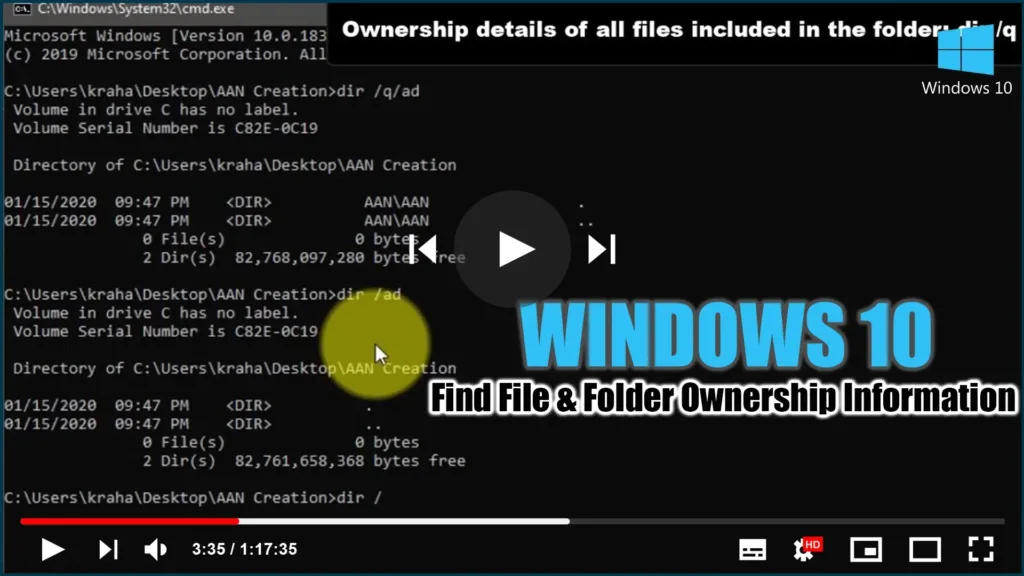

the File & Folder Ownership information. With the help of this guide,
you can determine who owns a single directory, all subdirectories, and
files. You can use this trick on almost any Windows version, for your
information.
using Command Prompt:
01. Open Command Prompt on your computer
02. Navigate to the desired folder
03. Use DIR command switch
04. Find the ownership information
To get started, you need to open the Command Prompt first. There are several
methods to open the Command Prompt window on your Windows computer. The
simplest way is to open the Folder and Type CMD in Address Bar hit Enter,
search for it in the Taskbar search box or press Win+R buttons together to
open the Run box, type cmd in it and hit Enter.
After opening the Command Prompt, you need to use the DIR command switch.
Next, you need to navigate to the folder where the target file or folder is
located.
Say, for example, you have a folder on your Desktop, and it is named as “AAN
Creation” To navigate to this folder, you need to enter this command:
Now, if you want to check the ownership details of the “AAN Creation” folder
only, enter this command:
dir /q /ad
dir /ad
If you want to check the ownership details of all files included in the “AAN
Creation”, you have to enter this command:
dir /q

(adsbygoogle = window.adsbygoogle || []).push({});
same name. If you have multiple files and owners, the difference can be
found in the same column.
as well as their sizes, allowing you to perform the next task based on
your needs.

