
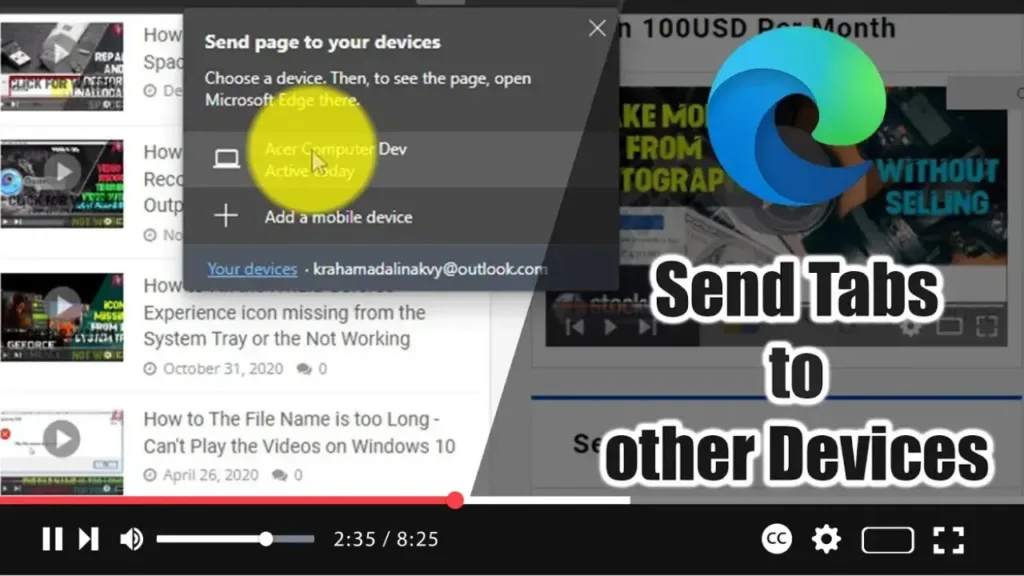

Microsoft Edge now includes a feature that allows you to send open tabs to another computer running Windows 10 or macOS, or to mobile devices, including Android and iOS. This eliminates the need to email or text links to yourself, making it more convenient to continue your browsing experience across multiple devices. Here’s how to use this feature:
Steps to Send a Tab to Another Device on Microsoft Edge:
Step 01: Open Microsoft Edge
Begin by opening the Microsoft Edge browser.
Step 02: Open the Desired Website
Navigate to the website you want to send to another device.
Step 03: Click the Address Bar
Click on the address bar to reveal additional buttons.
Step 04: Send the Page
Click the Send this page button, which looks like a computer with a phone icon.
Step 05: Select the Target Device
Select the device you want to send the page to from the list of available devices.
.webp)
What Happens Next:
- Once you complete these steps, the web page won’t instantly load on the other device. Instead, on devices like Windows 10, you will receive a toast notification with the name and link of the page.
- If you don’t see the alert immediately, check the Action Center to find the notification.
Additional Tips:
- Ensure you are signed in to the same Microsoft account on both devices to use this feature seamlessly.
- Make sure notifications are enabled on your target device to receive the link promptly.
By following these steps, you can easily send tabs between devices using Microsoft Edge, streamlining your workflow and enhancing your browsing experience.

