
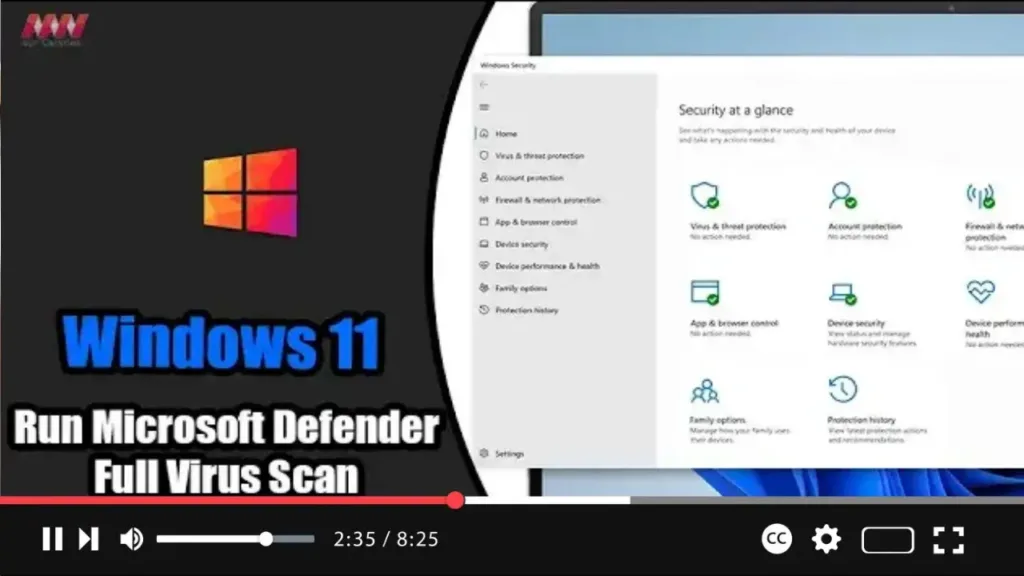

On Windows 11, Microsoft Defender Antivirus stands guard in the background, diligently scanning for various forms of malware, including viruses, ransomware, spyware, rootkits, and more. This built-in security feature provides proactive protection against cyber threats, ensuring the safety and integrity of your device. However, there are times when performing a manual virus scan becomes necessary, especially if your system is exhibiting signs of sluggishness or if you suspect malware activity.
Here’s a step-by-step guide to performing a complete virus scan using the built-in anti-malware solution on Windows 11:
Step 01: Open Windows Security: Begin by launching the Windows Security app. You can do this by searching for “Windows Security” in the Start menu or by clicking on the shield icon in the system tray.
.webp)
Step 02: Access Virus & Threat Protection: Within Windows Security, navigate to the “Virus & threat protection” section.
Step 03: Explore Scan Options: Under the “Current threats” section, locate and click on the “Scan options” link.
Step 04: Select Full Scan: In the Scan options menu, you’ll find various scanning methods. Choose the “Full scan” option to thoroughly check the entire system for viruses and other forms of malware.
Step 05: Initiate Scan: After selecting Full scan, click on the “Scan now” button to start the virus scanning process.
.webp)
Once you’ve completed these steps, Microsoft Defender Antivirus will commence scanning your computer for viruses and other malicious software. If any threats are detected during the scan, the antivirus will take appropriate action, such as removing or quarantining the threats automatically.
Performing regular virus scans is essential for maintaining the security of your Windows 11 device and safeguarding your data against potential threats. By following these simple steps, you can ensure that your system remains protected from malware and other cyber risks.
Stay vigilant, and keep your system secure!

