
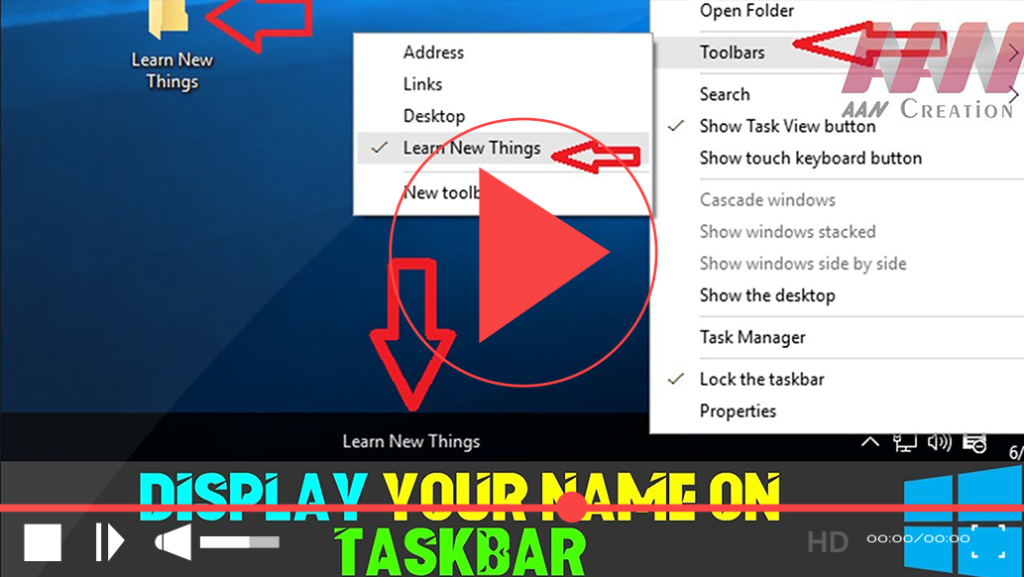

Customizing your Windows 10 experience can enhance productivity and provide quick access to your frequently used items. One way to personalize your taskbar is by displaying your name or a folder directly on it. This allows you to quickly access important files or simply add a personal touch to your desktop. Follow the steps below to display your name or a folder on the taskbar.
Step-by-Step Instructions
Step 01: Create a New Folder and Choose a Name
Begin by creating a new folder that will hold your desired name or any shortcuts you want to access quickly. To do this:
- Right-click on your desktop or in any file explorer window.
- Select New, then choose Folder.
- Name the folder to your preference, such as “My Name” or “Quick Access.”
Step 02: Add the Folder to the Taskbar
Now that your folder is ready, follow these steps to add it to the taskbar:
- Right-click on an empty area of the taskbar.
- Hover over Toolbars in the context menu.
- Click on New toolbar….
Step 03: Select the Folder You Created
A file explorer window will open, allowing you to choose the folder you just created. Follow these steps:
- Navigate to the location of your newly created folder.
- Select the folder and click Select Folder.

(adsbygoogle = window.adsbygoogle || []).push({});
Result: Viewing the Folder on the Taskbar
Once you’ve completed these steps, the folder you created will now appear on the taskbar. You can click on the folder icon to quickly access its contents.
Additional Tips for Customization
- Rearranging Toolbars: You can rearrange toolbars by clicking and dragging them along the taskbar to your desired position.
- Creating Shortcuts: If you want to add shortcuts to specific applications within the folder, simply drag and drop those application icons into the folder you created.
- Editing Folder Content: You can add or remove files and shortcuts from this folder at any time. Changes will automatically reflect on the taskbar.
By following these steps, you can easily display your name or any folder on your Windows 10 taskbar, enhancing your desktop organization and accessibility.

