
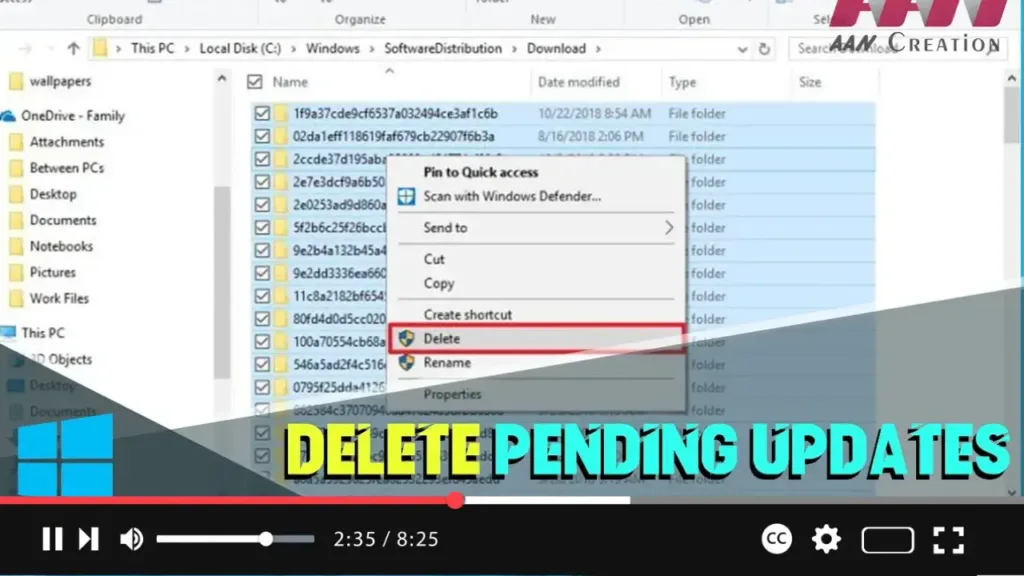

Windows 10 updates are essential for system stability, security, and performance improvements. However, sometimes the installation of cumulative updates can cause problems due to file corruption, compatibility issues, or unknown bugs. If you’re having trouble installing a Windows update or want to avoid a problematic patch, you can delete the pending updates. This process involves removing the contents inside the SoftwareDistribution folder, which contains the files that Windows Update uses to apply new updates.
Introduction
Deleting pending updates can help resolve update installation problems and give you control over which updates to install. This guide will show you how to delete the files for pending updates on Windows 10.
Steps to Delete Pending Updates on Windows 10
Step 01: Open File Explorer on Windows 10
Press Windows key + E to open File Explorer.
Step 02: Navigate to the SoftwareDistribution Folder
.webp)
Type the following path in the address bar and press Enter:
C:WindowsSoftwareDistributionDownload
Step 03: Select All Contents
Select all the contents inside the “Download” folder. You can do this by pressing Ctrl + A or clicking the “Select all” option in the “Home” tab.
Step 04: Delete the Files
Click the “Delete” button from the “Home” tab to remove all the selected files.
.webp)
Conclusion
Once you complete these steps, the cumulative update installation files will be deleted from your device. This can help resolve issues related to failed update installations or allow you to skip problematic updates. By removing these files, Windows Update will re-download the necessary updates during the next update check, potentially resolving any previous issues.
Additional Tips
- Restart Windows Update Service: If you encounter issues after deleting the files, consider restarting the Windows Update service to ensure it functions correctly.
- Backup: Always create a backup of important data before making significant changes to system files.
By following these steps, you can manage Windows updates more effectively and maintain your system’s stability and performance.

