
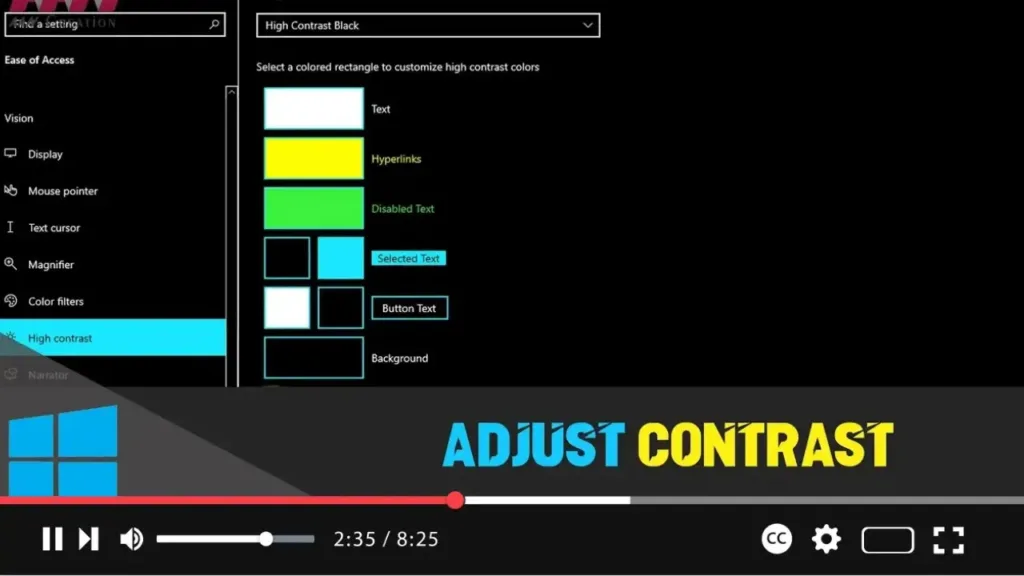

Adjusting the contrast in Windows 10 can enhance visibility and reduce eye strain, especially for users with visual impairments. Here’s a comprehensive guide on how to adjust the contrast settings:
Introduction:
Windows 10 provides several options to adjust contrast to improve readability and visual comfort. High contrast settings change the color scheme of your desktop and apps to make text and elements stand out more clearly. Below are the steps to adjust contrast in Windows 10.
Steps to Adjust Contrast:
Step 01: Open Settings
Press the Windows key + I to open the Settings app, or click on the Start menu and select the gear icon.
Step 02: Access Ease of Access Settings
In the Settings window, click on “Ease of Access.”
Step 03: Navigate to High Contrast Settings
In the Ease of Access menu, click on “High contrast” located on the left side under the “Vision” section.
Step 04: Turn on High Contrast
Toggle the switch under “Turn on high contrast” to “On.” This will immediately change the screen to a high contrast theme.
Step 05: Choose a High Contrast Theme
You can choose from several pre-defined high contrast themes. Click on the drop-down menu under “Choose a theme” and select the one that best suits your needs. Options include “High Contrast #1,” “High Contrast #2,” “High Contrast Black,” and “High Contrast White.”
.webp)
Step 06: Customize High Contrast Colors
If the pre-defined themes don’t meet your preferences, you can customize the colors:
- Click on the color box next to each item (Text, Hyperlinks, Disabled Text, Selected Text, Button Text, and Background).
- Select a new color from the color picker or enter a specific color code.
- Click “Done” after selecting each color to save your changes.
Step 07: Apply the Changes
After customizing your theme, click “Apply” to implement the changes. Your screen will update to reflect the new high contrast settings.
Step 08: Turn Off High Contrast
If you want to disable high contrast mode, simply toggle the switch under “Turn on high contrast” to “Off.” Your screen will revert to the standard theme.
.webp)
Additional Information:
- Quick Toggle: You can quickly turn high contrast on or off by pressing
Left Alt + Left Shift + Print Screen. This shortcut is handy for users who frequently switch between high contrast and normal mode. - Custom Themes: If you frequently adjust high contrast settings, consider saving your custom theme. This way, you can easily switch back to it without reconfiguring each time.
- Accessibility Features: Besides high contrast, Windows 10 offers other accessibility features like Magnifier, Narrator, and Color Filters. Explore these options under the Ease of Access settings to enhance your overall experience.
By following these steps, you can adjust the contrast settings in Windows 10, making the screen more comfortable to view and improving accessibility.

