

VirtualBox isn’t starting the guest OS & it displays ‘Failed to
open session for the virtual machine’ [virtual-machine-name]
open session for the virtual machine’ [virtual-machine-name]
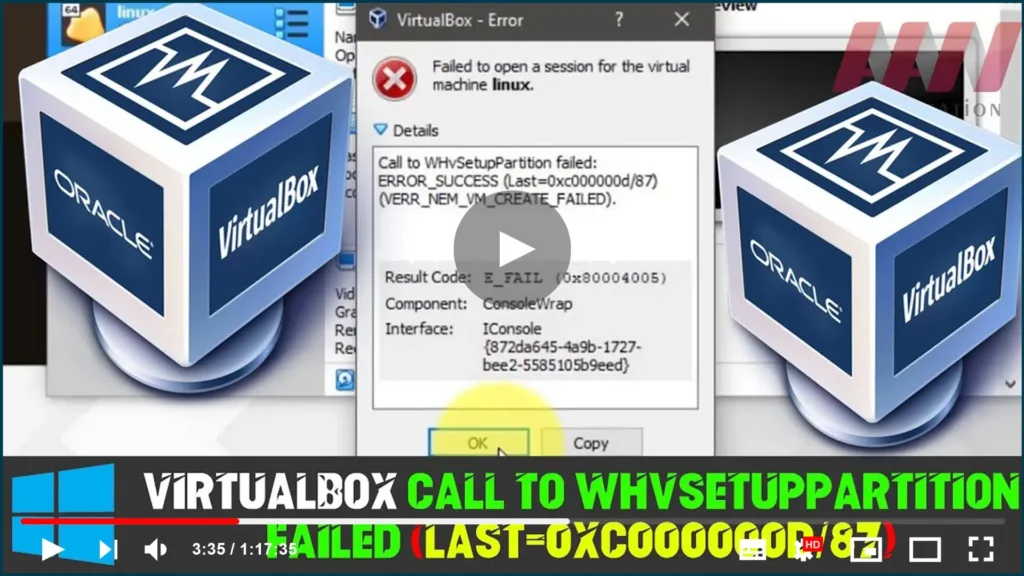
Call to WHvSetupPartition failed:
ERROR_SUCCESS (Last=0xc000000d/87)
(VERR_NEM_VM_CREATE_FAILED).
Result Code: E_FAIL (0x80004005)
Component: Consolewap
Interface: IConsole{872da645-4a9b-1727-bee2-5585105b9eed}
In this guide, you’ll learn the steps to Fix VirtualBox failure to open
a session for the virtual machine, VirtualBox Call to WHvSetupPartition
failed: ERROR_SUCCESS (Last=0xc000000d/87). use these steps:
a session for the virtual machine, VirtualBox Call to WHvSetupPartition
failed: ERROR_SUCCESS (Last=0xc000000d/87). use these steps:
01. Open VirtualBox as administrator.
02. Install platform package.
03. Discard the saved state.
04. Reinstall VirtualBox.
1] Open VirtualBox as an administrator
Although administrator privilege isn’t mandatory by default, sometimes
you might need to use that to solve this problem. If you have a
desktop shortcut of VirtualBox & you use this shortcut to open
this tool, you can right-click on the corresponding logo, & select
Run as administrator. although, if you want to provide admin
permission to VirtualBox permanently, you need to follow these steps.
you might need to use that to solve this problem. If you have a
desktop shortcut of VirtualBox & you use this shortcut to open
this tool, you can right-click on the corresponding logo, & select
Run as administrator. although, if you want to provide admin
permission to VirtualBox permanently, you need to follow these steps.
Right-click on the desktop shortcut & go to Properties. Then, go
to the Compatibility tab.
to the Compatibility tab.
You should see a checkbox that says Run this program as administrator.
To save the change, check that box and click the OK button.
To save the change, check that box and click the OK button.
Here’s what you can do if you don’t have a desktop shortcut open
VirtualBox from the Start menu. You can search for VirtualBox,
right-click on the exact search result, & select Run as
administrator.
VirtualBox from the Start menu. You can search for VirtualBox,
right-click on the exact search result, & select Run as
administrator.
In addition, the steps below will assist you if you want to give admin
access to this Start menu button. Search for VirtualBox in the Taskbar
search box, & select Open file location. You need to open the
Startup folder on a Windows computer and go to Oracle VM VirtualBox.
access to this Start menu button. Search for VirtualBox in the Taskbar
search box, & select Open file location. You need to open the
Startup folder on a Windows computer and go to Oracle VM VirtualBox.
After that, right-click on the Oracle VM VirtualBox icon, go to the
Properties ➡ Compatibility tab and select the Run this program as an
administrator checkbox.
Properties ➡ Compatibility tab and select the Run this program as an
administrator checkbox.
After doing this, you shouldn’t get the problem mentioned earlier.
2] Install the platform package
The platform package makes it easier for VirtualBox to use various
components. If you have not installed it yet, you can head over to
this page, and download the latest platform package for your OS.
components. If you have not installed it yet, you can head over to
this page, and download the latest platform package for your OS.
3] Discard/Delete saved state

(adsbygoogle = window.adsbygoogle || []).push({});
If you have not closed the VirtualBox or run the virtual machine
properly, there is a chance of getting such an issue. Therefore, use
the Discard Saved State option to kill all the running processes,
& close the app immediately. You can also select the virtual
machine and press Ctrl + J.
properly, there is a chance of getting such an issue. Therefore, use
the Discard Saved State option to kill all the running processes,
& close the app immediately. You can also select the virtual
machine and press Ctrl + J.
4] Reinstall VirtualBox
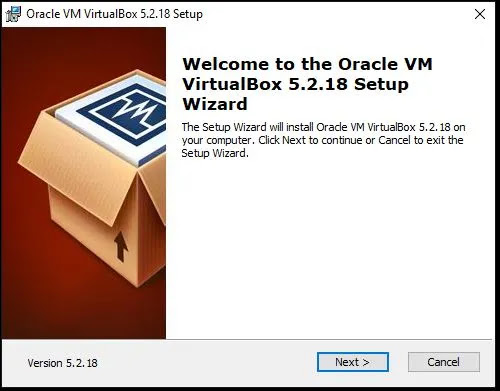
If none of the above suggestions helped you to solve the problem, the
only solution is the reinstallation of VirtualBox. Don’t forget to
remove all the leftovers before installing them again.
only solution is the reinstallation of VirtualBox. Don’t forget to
remove all the leftovers before installing them again.

