

No matter what kind of content you keep on your computer, you’ll always find reasons to hide certain files and folders. Perhaps you have important documents and videos that you want to keep under wraps, or you simply want to prevent users from accidentally deleting certain files if you’re sharing your PC with other people.


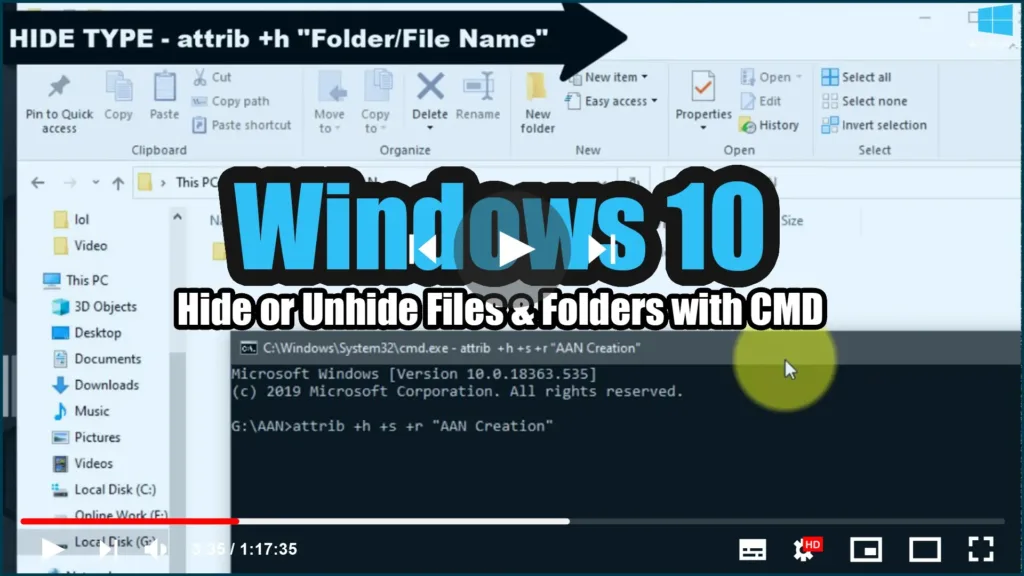
For whatever reason, on Windows 10, you can quickly hide a file or folder in two different ways, including using File Explorer or the attrib command using Command Prompt.
In this Windows 10 guide, we’ll walk you through the easy steps to hiding a file and folder on your computer. In addition, you’ll learn the steps to access those hidden items as needed.
How to hide files and folders using File Explorer
Using File Explorer is the simplest way to keep content hidden.
01. Open File Explorer.
02. Navigate to the file or folder you want to hide.
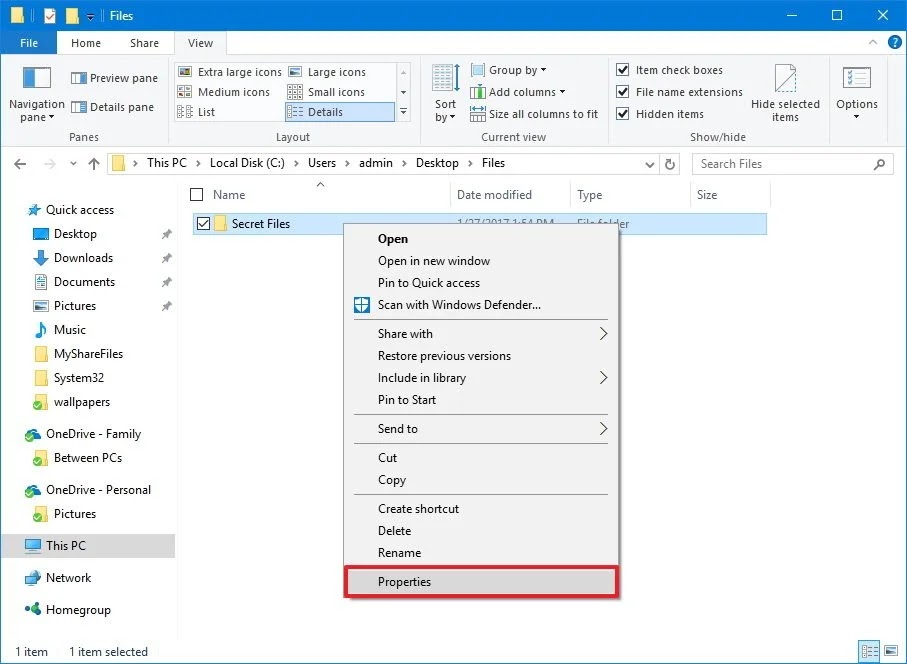
03. Right-click the item and click on Properties.
04. On the General tab, under Attributes, check the Hidden option.
05. Click Apply
06. On the General tab, under Attributes, check the Hidden option.
07. Click Apply.
08. If you’re hiding a folder with files and subfolders, make sure to select the Apply changes to this folder, subfolders, and files option.
09. Click OK.
10. To finish the task, click OK once more.
11. Once you’ve completed the steps, the hidden items will not be visible anymore, because by default Windows 10 doesn’t show hidden files.
How to Hide files and folders using Command Prompt
To hide files and folders on your computer, you can also use Command Prompt.
01. Open Start.
02. Do a search for Command Prompt and click the result.
03. Type the following command to navigate to the items you want to hide and press Enter:
cd C:UsersadminDesktopFiles
04. In the command replace the path after cd with the path to your file or folder.
05. Type the following command to hide a folder or file and press Enter:
attrib +h "Secret Files"
06. In the command replace “Secret Files” with the name of your folder or file. Quotation marks are only necessary when there are spaces in the name.
(adsbygoogle = window.adsbygoogle || []).push({});
If you want to hide a folder with files and subfolders that you also want to keep hidden, follow these steps as well.
01. To navigate inside the hidden folder, type the following command into Command Prompt and press Enter:
cd "Secret Files"
02. In the command replace “Secret Files” with the name of your hidden folder.
03. Type the following command to hide all files and folders inside the hidden folder and press Enter:
attrib +h /s /d

After completing the steps, the items with the hidden attribute will no longer be visible.

