

If you have got a hard drive formatted with the FAT32 file system, you
might have found that you can not copy large files to that drive. So, how
do you correct this and convert the file system to NTFS? This is
how.
might have found that you can not copy large files to that drive. So, how
do you correct this and convert the file system to NTFS? This is
how.
Scratching your head? The problem is that the FAT32 file system, which is
still used by most external drives, can’t handle files larger than about 4
GB in size – which includes most full-length movies and anything extremely
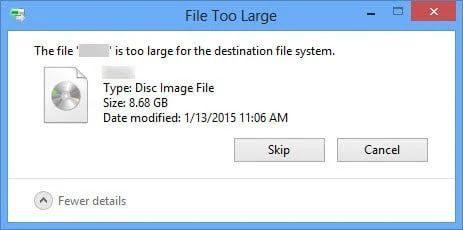
large, such as a virtual machine. If you try to copy a file, you’ll get an
error similar to this:
still used by most external drives, can’t handle files larger than about 4
GB in size – which includes most full-length movies and anything extremely
large, such as a virtual machine. If you try to copy a file, you’ll get an
error similar to this:
It’s worth noting that FAT32 works on almost any operating system,
whereas NTFS is usually read-only on Linux or Mac OS X.
Convert the File System Directly
If you have already got a ton of files on the drive and do not have the
free space to move them around, you can convert the file system directly
from FAT32 to NTFS. Just open up an Administrator mode command prompt by
right-clicking & choosing Run as Administrator, & then you can
type convert /? to view the convert command’s syntax.
free space to move them around, you can convert the file system directly
from FAT32 to NTFS. Just open up an Administrator mode command prompt by
right-clicking & choosing Run as Administrator, & then you can
type convert /? to view the convert command’s syntax.
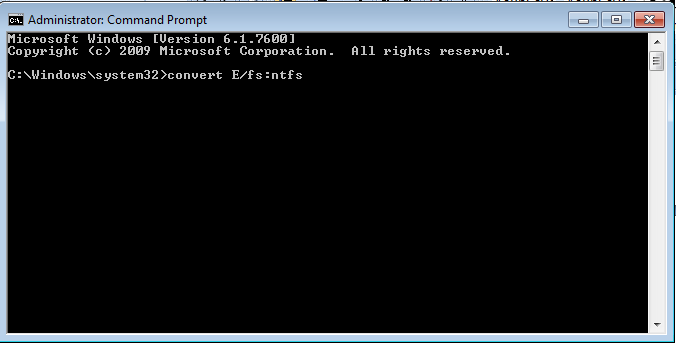
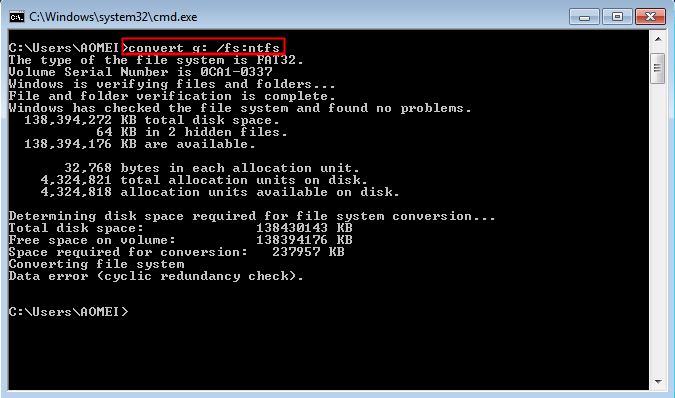
In our example, the drive letter is G: so the command we’d use is
this:
convert G: /FS:NTFS
The conversion process may take some time, especially if you have a
large drive.
large drive.
(adsbygoogle = window.adsbygoogle || []).push({});
Reformat the Drive
If you don’t have a lot of data on the drive, your best bet is to copy
any data from it to another location, reformat the drive, and then copy
the data back. All you have to do is right-click on the drive and select
Format from the menu that appears.

And then select NTFS in the file system drop-down.
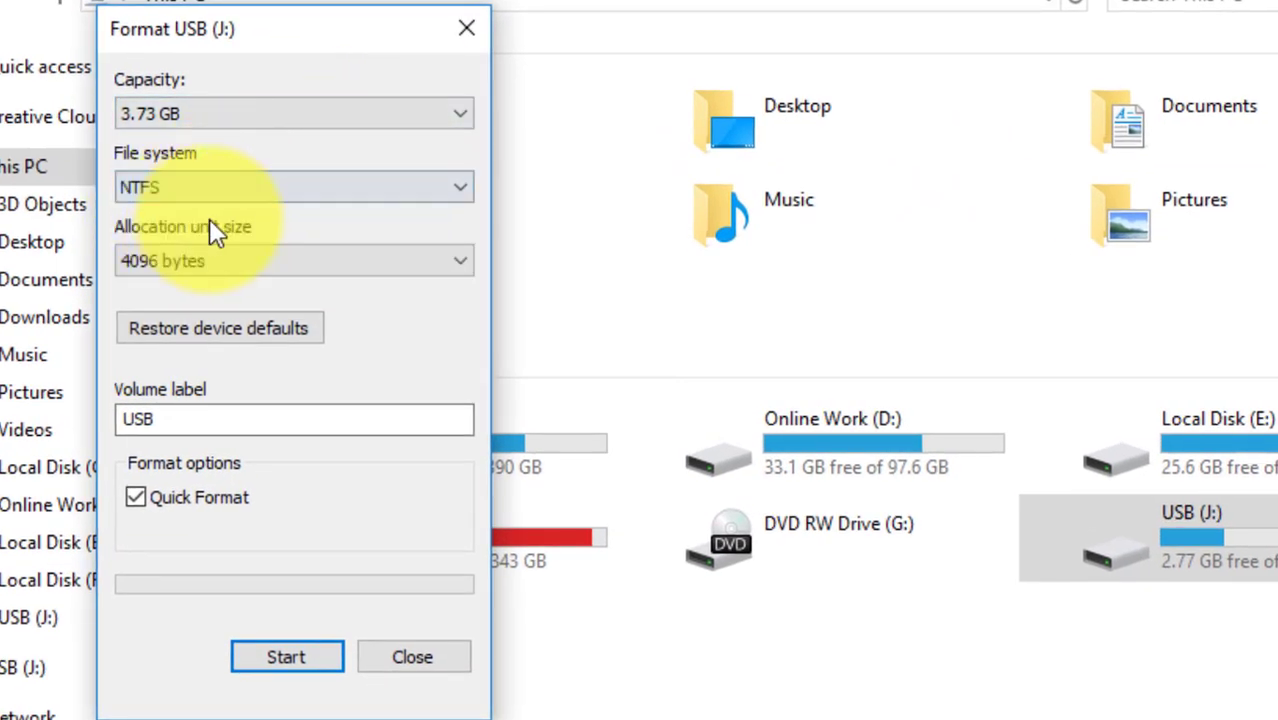
Finish the format, and copy your data back.

