
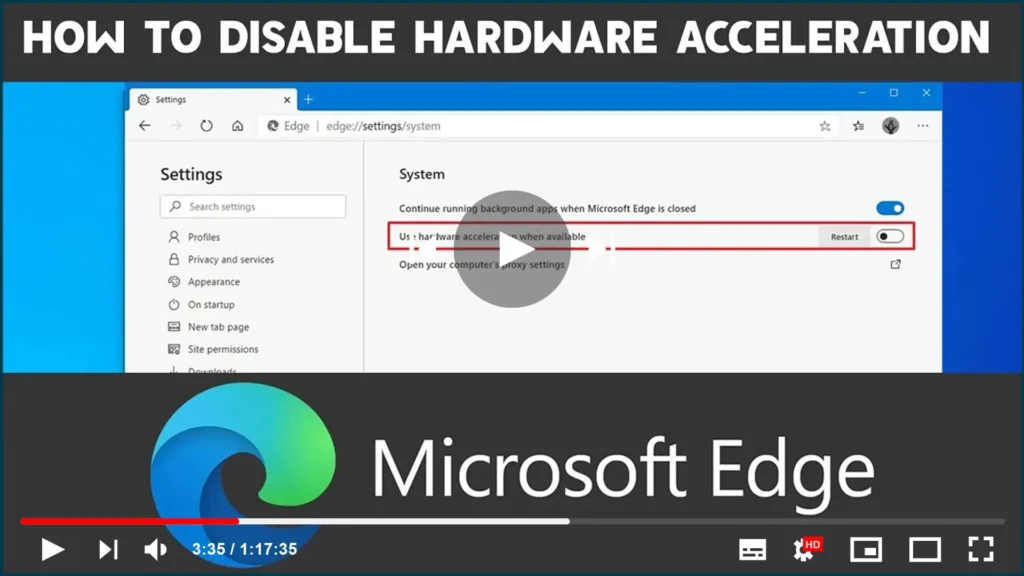

Microsoft Edge Chromium comes with hardware acceleration, a feature that
enables the browser to access the graphics card on the device to speed up
certain tasks to improve the overall user experience.
However, depending on your computer configuration, hardware acceleration can
negatively affect the experience by preventing visual elements from
displaying correctly.
If you’re seeing menus and dialog boxes not rendering as expected, or a
green screen when trying to play a video on Microsoft Edge, disabling
hardware acceleration can resolve the problem.
In this guide, you’ll learn the steps to disable hardware acceleration in
the Chromium version of Microsoft Edge on Windows 10.
How to disable hardware acceleration Microsoft Edge
To turn off hardware acceleration in Microsoft Edge, follow these
steps:
steps:
01. Open Microsoft Edge.
02. Click the Settings and More (three-dotted) button on the top-right
corner.
corner.

(adsbygoogle = window.adsbygoogle || []).push({});
03. Click on Settings.
04. Click on System.
05. Under the “System” section, turn off the Use hardware acceleration
when available toggle switch.
when available toggle switch.

06. Click the Restart button.
Once you complete the steps, menus and visual elements should render
correctly in the Chromium version of Microsoft Edge.
correctly in the Chromium version of Microsoft Edge.

