

(adsbygoogle = window.adsbygoogle || []).push({});
Have you ever met this problem that your SD card or USB drive suddenly shows
as unallocated or even stops working on your Computer! Afterward, you can
neither access data nor save new data on it. Many users have encountered the
issue that a used storage device, like a hard disk, USB, SD card, or pen
drive, is missing under File Explorer & is marked as “Unallocated” in Disk
Management, which is quite confusing & annoying.
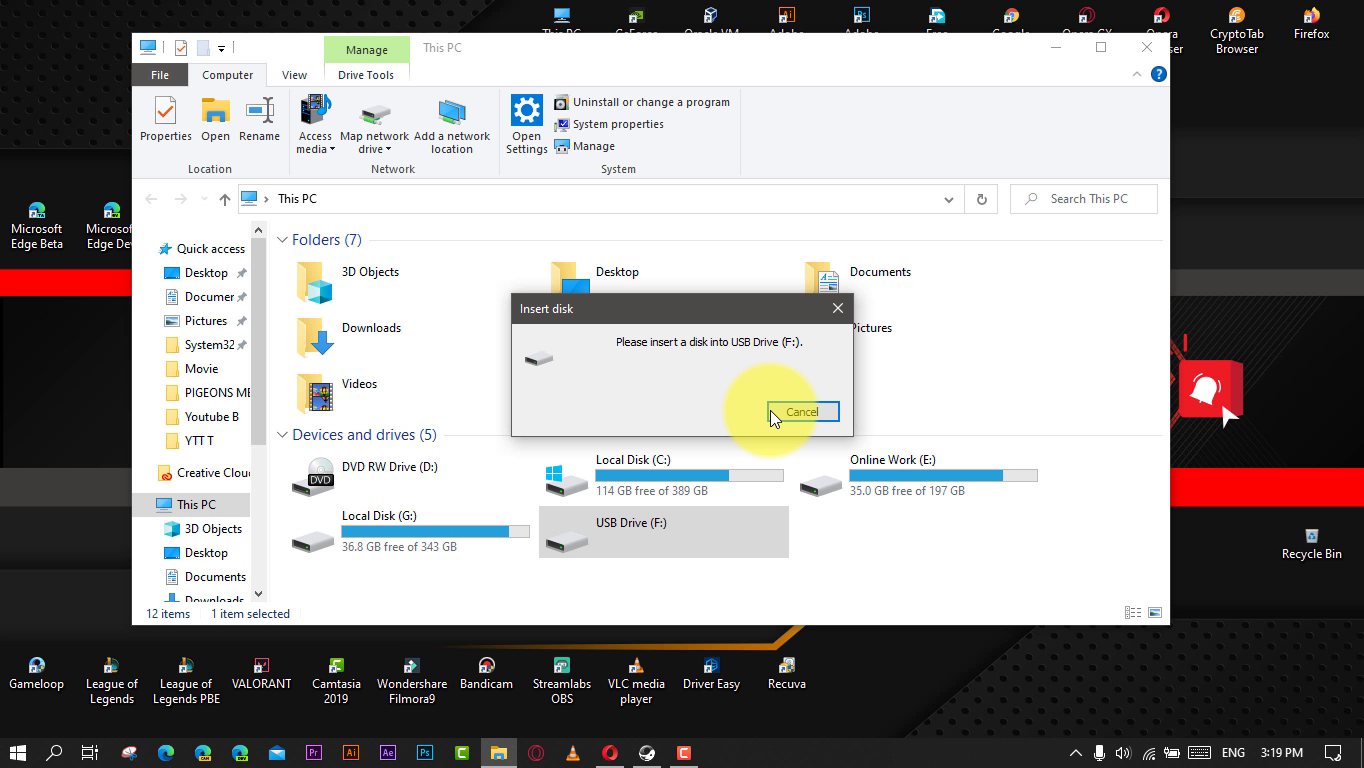
The commonest reasons are deletion and virus attack. For Ex, you may
accidentally delete the partition on the USB, or some program does this for
you. It is also possible that you were doing some operations that required you
to delete partitions but you did not realize it. Besides, it isn’t surprising
that malicious virus attacks may bring various negative results, including a
USB becoming unallocated.
In such cases, data loss always coincides with the partition’s change to
unallocated volume. Fortunately, you can repair an unallocated USB or SD card
and retrieve your files with recovery software.
If the USB or SD Card is brand new or you have no intention to perform data
recovery, you can create a new partition using the allocated space directly to
make the space usable.
in this article, you’ll learn the steps to Fix and Repair an Unallocated USB
or SD Card. use these steps.
01. Connect or insert the USB or SD card into the computer.
02. Right-click the Windows icon.
03. Click “Disk Management”.
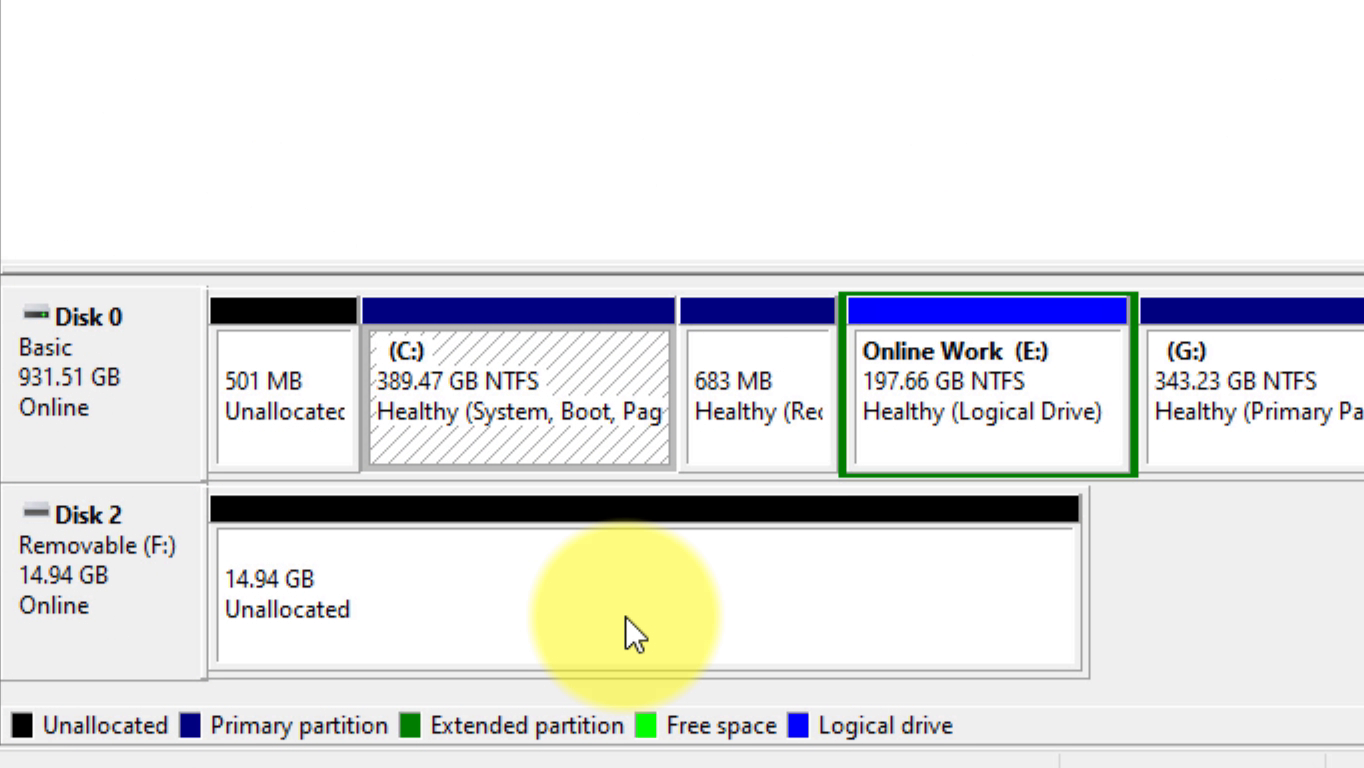
04. Right-click the unallocated space & choose “New Simple Volume”.
05. Follow the wizard to finish the remaining process.
(adsbygoogle = window.adsbygoogle || []).push({});
You can also partition an unallocated USB Driver or SD card using third-party
software.

