

allowing you to install a website as a native app on Windows 10, enabling
additional features, such as push notifications, background data refresh,
offline support, and more.
Microsoft Edge had a similar functionality known as pins. However, the
ability to install web apps from the new version of the browser makes
sites available from the Start menu and taskbar. In addition, if the
website is capable, you can also use it offline.
install just like regular apps and are even listed on the “Apps &
features” settings page.
the new Chromium version of Microsoft Edge.
How to install Progressive Web Apps on Microsoft Edge
To install a Progressive Web App on Windows 10 using Microsoft Edge
Chromium, use these steps:
01. Open Microsoft Edge.
02. Navigate to the site that you want to turn into an app on Windows
10.
03. Click the Settings and More (three-dotted) button on the top-right
corner.

(adsbygoogle = window.adsbygoogle || []).push({});
04. Select the Apps option.
05. Click the Install option.
06. Navigate to the site that you want to turn into an app on Windows
10.

07. Click the Settings and More (three-dotted) button on the top-right
corner.
08. Select the Apps option.
09. Click the Install option.
Once you complete the steps, the website will open as a separate process
with a minimalist frame without navigation options or address the bar as
if it was a native application on Windows 10.
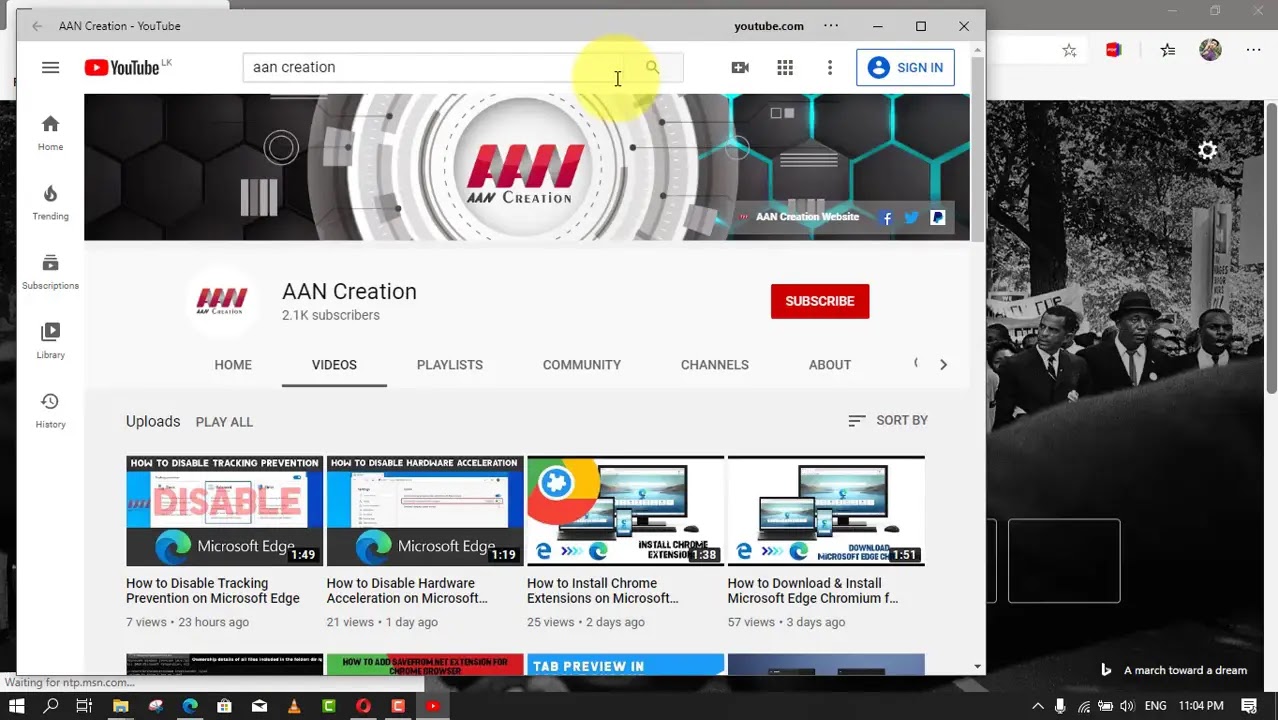
However, you’ll notice a three-dotted button in the top-right, which
allows you to access options, such as to remove the app, print, zoom,
search, info about the site, and an option to open the site on Microsoft
Edge normally
After you save a site, it’ll install like a normal app, and it’ll appear
in the Start menu. You can then pin it to the Start or taskbar. You can
always access all of your web apps from edge://apps.

