


Hello there! Are you ready to unlock a powerful feature on your Windows system? Today, I’ll walk you through enabling “God Mode,” a handy trick that consolidates system configuration settings for quick access. Even if you’re running Windows 11, 10, or older versions, you can still leverage this feature to streamline your settings management.
But what exactly is “God Mode”? It’s a hidden gem within Windows that grants you centralized access to a wide range of settings by creating a special folder. This folder acts as a hub, gathering various configuration options in one convenient location, reminiscent of the Control Panel era. While the Settings app has become the primary interface for managing system configurations, “God Mode” remains a valuable tool for those seeking a comprehensive view of their settings.
Despite its unofficial name, “God Mode” has become synonymous with unparalleled control over Windows settings, coined by enthusiasts and the media. Its origins can be traced back to Windows 7, making it compatible with multiple Windows iterations, including Windows 8, 10, and 11.
Let’s dive into the steps to activate this hidden feature:
- Right-click on your desktop to bring up the context menu.
- Select “New” and then choose “Folder” from the options.
- Give the folder a name of your choice and hit “Enter.”
Now, here comes the crucial part. You’ll need to append a specific string to the folder name to activate “God Mode.” Here’s the magic string:
plaintextGodMode.{ED7BA470-8E54-465E-825C-99712043E01C}
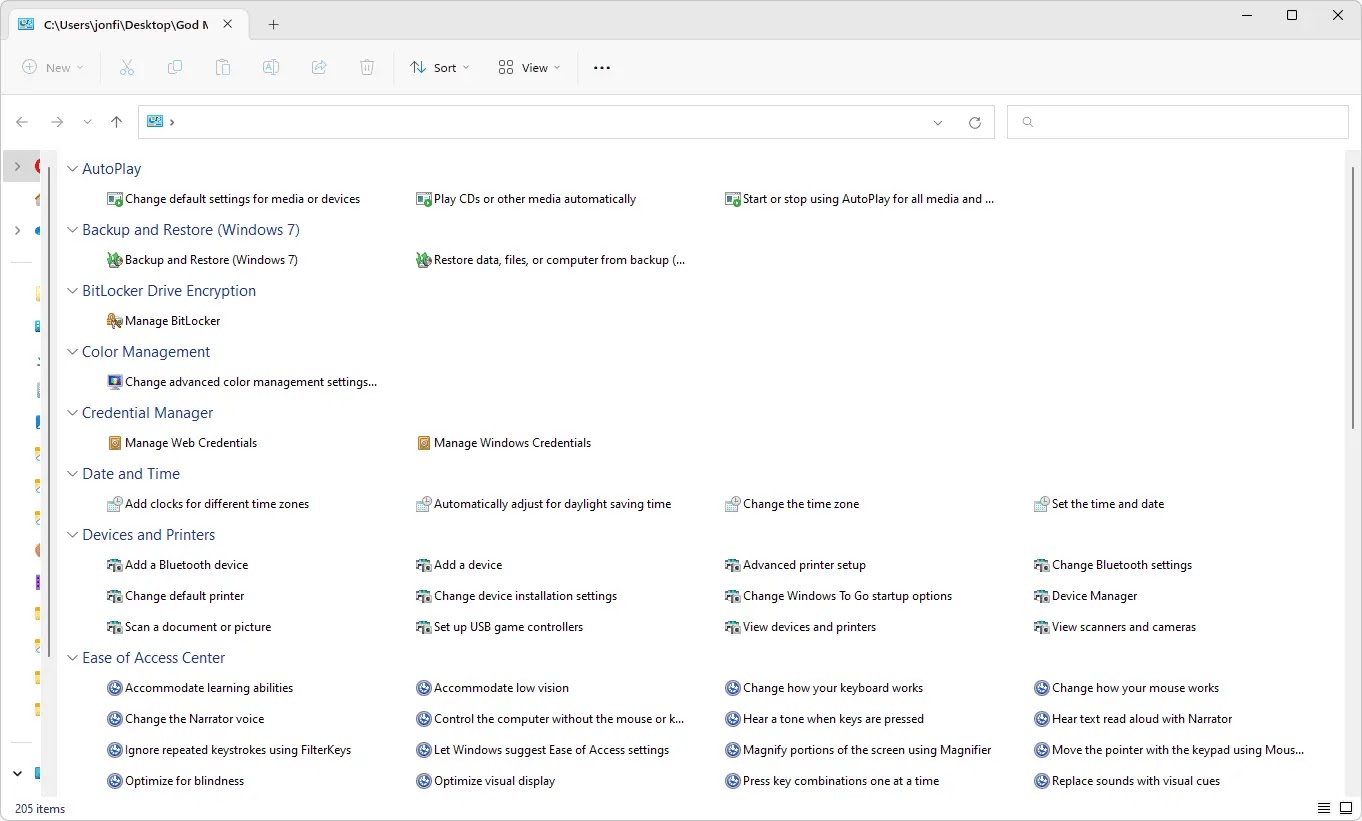
Simply add this string to the end of your folder name, and voila! You’ve unlocked “God Mode” on your Windows system, granting you unparalleled access to a plethora of settings from a single, centralized location.
With “God Mode” at your fingertips, you’ll breeze through system configurations like never before. Say goodbye to endless navigation through different panels and hello to efficiency and control.
So, what are you waiting for? Give it a try and experience the power of “God Mode” on your Windows device today!

