

When it comes to computer hardware, identifying your RAM, graphics card, or storage might be simple, but determining your motherboard’s model can sometimes be a bit more involved. Luckily, Windows provides an easy way to find your motherboard information using Command Prompt. This process is straightforward even for those new to computers. Here’s a detailed guide to help you quickly identify your motherboard.
How to Check Your Motherboard Using Command Prompt in Windows 10
To easily retrieve your motherboard’s model and other relevant details, you can use Windows Command Prompt. Here’s how to go about it:
Step 01: Open Command Prompt
- Select the search field in your taskbar, type
cmd, and press Enter. - Alternatively, you can press
Windows + Rto open the Run dialog box, typecmd, and press Enter.
You do not need administrative privileges to access your motherboard details, so running Command Prompt as an administrator is not required.
Step 02: Retrieve Motherboard Information
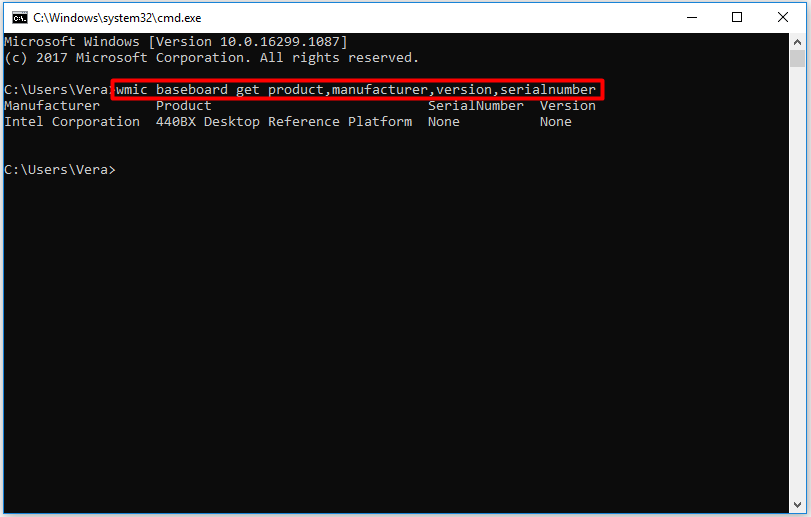
Once Command Prompt is open, you can use the Windows Management Instrumentation Command (WMIC) to display the necessary details. Simply type the following command and press Enter:
wmic baseboard get product,manufacturer,version,serialnumber
This command will return key details about your motherboard, including the manufacturer, model, version, and serial number.
(adsbygoogle = window.adsbygoogle || []).push({});
Locating the Model on the Physical Motherboard
If you prefer to visually locate the model on your motherboard, it is often printed on the board itself. Depending on the layout, the model number can usually be found in one of the following locations:
- Below the RAM slots
- Between the CPU and GPU (as in the case of the Asus Prime B350-Plus)
- Under the GPU (as seen on boards like the Asus Prime B350M-A)
If you’re unsure about where these components are located, you can check out a comprehensive guide on motherboard parts and their functions for further assistance.
Conclusion
Finding out what motherboard you have is a simple task using Command Prompt in Windows 10. By running a single command, you can retrieve essential information such as the manufacturer, model, and serial number of your motherboard. For those who prefer a visual check, the motherboard model is usually printed directly on the board. This method is quick, effective, and doesn’t require any advanced technical skills.

