
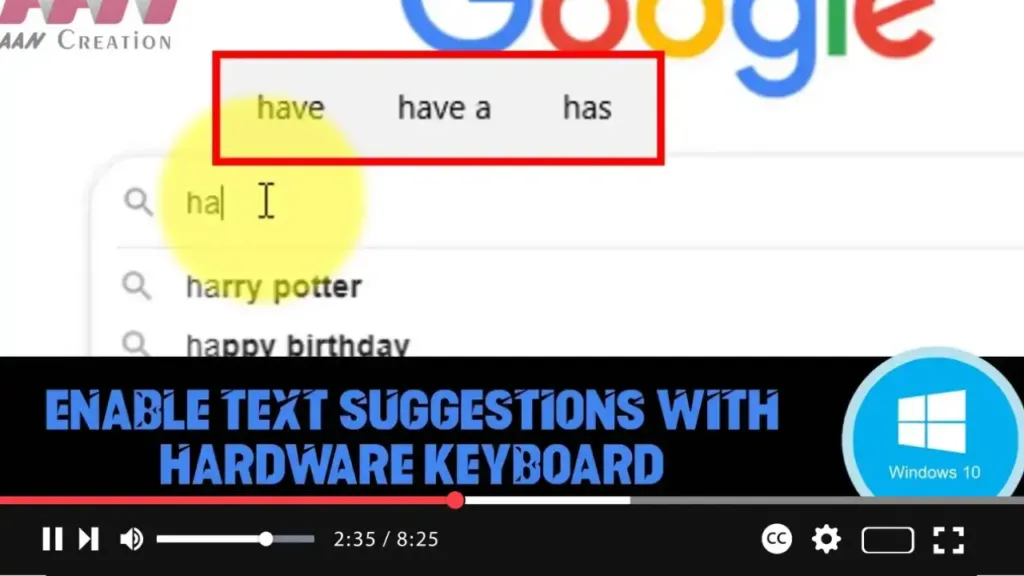

Windows 10, for a long time, provided text suggestions when using the on-screen keyboard. However, starting with Windows 10 version 1803, Microsoft expanded this feature to include suggestions when using a hardware keyboard as well. This allows users to see text suggestions as they type, making typing more efficient, especially for non-native English speakers, learners, and users with accessibility needs. The system suggests words based on your typing and even provides relevant emojis when appropriate.
This feature is not enabled by default, but once turned on, it improves the typing experience significantly by offering quicker word choices and reducing the number of keystrokes needed. You can select the suggested text using the keyboard or mouse, streamlining the typing process across various applications and text boxes.
Steps to Enable Text Suggestions for Hardware Keyboard on Windows 10:
Step 01:
Open Settings by pressing Windows + I or by clicking the gear icon in the Start menu.
Step 02:
Click on Devices.
.webp)
Step 03:
Click on Typing in the left-hand menu.
Step 04:
Under the Hardware keyboard section, turn on the Show text suggestions as I type toggle switch.
Once this feature is enabled, Windows 10 will display up to three text suggestions as you type using a physical keyboard. If relevant, emoji suggestions will also appear, allowing for faster and more expressive typing.
.webp)
Additional Information:
- Learning and Accessibility: This feature is particularly useful for users learning English or other languages, as well as individuals with accessibility needs who benefit from word prediction.
- Emoji Integration: In some cases, the suggestions might include emojis, allowing for easier communication through symbols and expressions.
By enabling this option, typing becomes faster and more efficient, especially for those who want predictive text when using a physical keyboard.

