
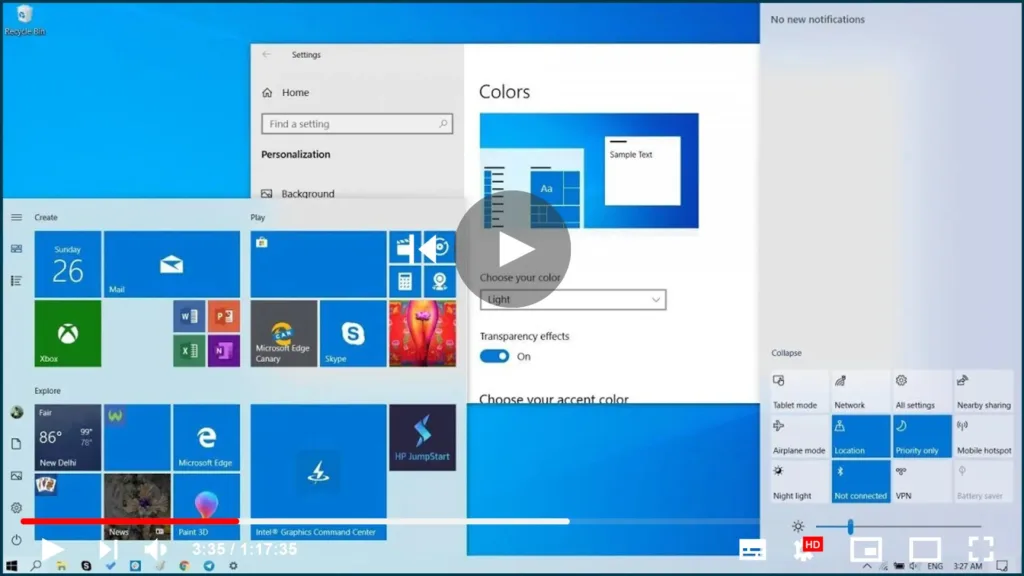

Windows 10 already ships with a light theme, it was never consistent as
many elements, such as the Action Center, taskbar, start menu, & other
modern elements use a dark color scheme.
Starting with version 1903, Windows 10 introduces a system light theme
that brings lighter colors for all the visual elements, & the result
is a new experience that many users will argue is a little similar to the
default theme available on macOS.
In this article, you’ll learn how to switch to the full light theme
available with Windows 10 version 1903.
How to Enable Full Light Theme using Settings.
To use the light theme in the Start menu, taskbar, & Action Center,
use these steps:
01. Open Settings.
02. Click on Personalization.
03. Click on Colors.
04. Use the “Choose your color” drop-down menu & select the Light
option.

(adsbygoogle = window.adsbygoogle || []).push({});
Once you complete the steps, the light theme will apply across the os,
including the Start menu, Action Center, & taskbar.
Alternatively, you can enable the light theme by applying the new “Windows
Light” theme on Settings > Personalization > Themes.
How to Enable Traditional Light Theme using Settings
If you want to go back to the legacy light theme, use these steps:
01. Open Settings.
02. Click on Personalization.
03. Click on Colors.
04. Use the “Choose your color” drop-down menu & select the Custom
option.

(adsbygoogle = window.adsbygoogle || []).push({});
05. Under “Choose your default Windows mode,” select the Dark option.
06. Under “Choose your default app mode,” select the Light option.
After you finished the steps, your desktop will be back to the same light
theme available before installing Windows 10 version 1903.

