
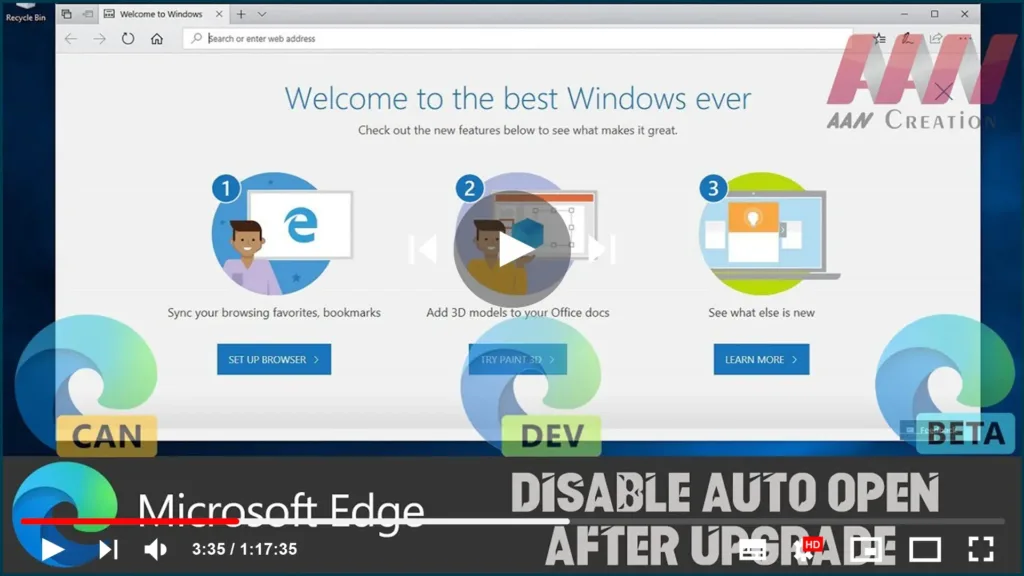

On Windows 10, every time you upgrade to a new version, during the first
sign-in after the installation, Microsoft Edge opens automatically and
displays a welcome screen. While this “Windows welcome experience” may be
useful to highlight new features, and more importantly it indicates that
your device has been upgraded successfully, it’s not something that everyone
wants to see on the desktop after an upgrade.
If you want to disable the welcome message after installing a feature update
to prevent Microsoft Edge from opening automatically, you can do this using
the “Notifications & actions” settings.
In this guide, you’ll learn the steps to stop Microsoft Edge from opening
automatically to show you the Windows welcome experience after an
upgrade.
To disable the Windows 10 welcome experience on Microsoft Edge, use
these steps:
these steps:
01. Open Settings.
02. Click on System.
(adsbygoogle = window.adsbygoogle || []).push({});

03. Click on Notifications & actions.
04. Under “Notifications,” turn off the Show me the Windows welcome
experience after updates and occasionally when I sign in to highlight
what’s new and suggested toggle switch.
experience after updates and occasionally when I sign in to highlight
what’s new and suggested toggle switch.

After you’ve completed the steps, Microsoft Edge will no longer open
automatically to show you the welcome screen after installing a new
feature update.
automatically to show you the welcome screen after installing a new
feature update.

