

01. Open Microsoft Edge.
02. Click the Settings and more (three-dotted) button in the top-right corner.
03. Click on Settings.
04. Click on Languages.
05. You’ll find an extra toggle option – Offer to translate the pages that aren’t in a language you read. Toggle this option to make it enable.

06. Add Any language your wish to Translate.
07. Click the (three-dotted) button in the Selected Language.
08. Checked the Offer to Translate Pages in this Language.
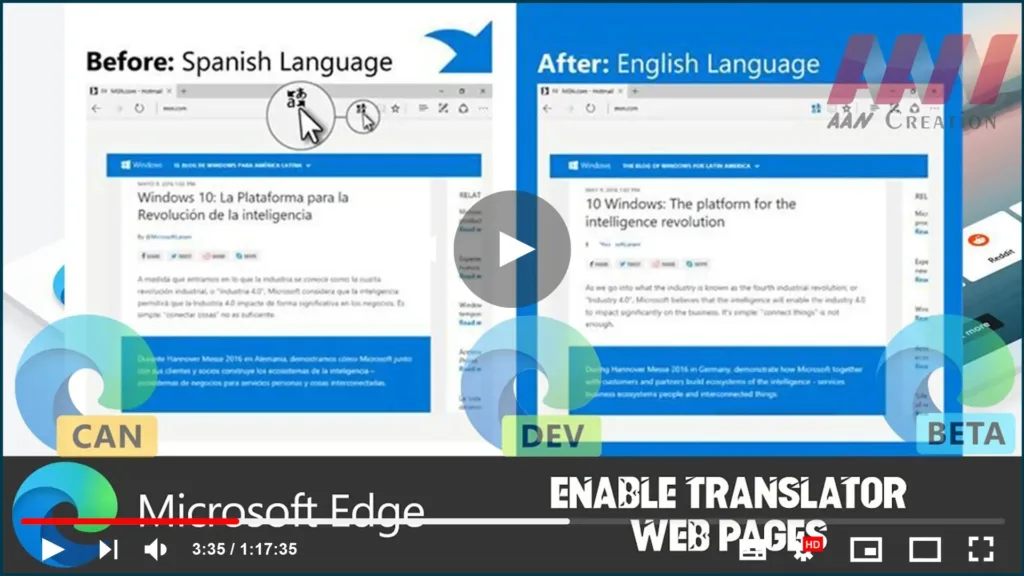
You will notice that the Microsoft Translator icon will be available in the address bar of the main menu of the browser. You can also check this option using the context menu on the page.
(adsbygoogle = window.adsbygoogle || []).push({});

This will translate any pages on the Chromium Edge browser by using this option. This option will also translate the pages when you browse back and forth the screen.
When you click on this option, a dialog will appear allowing you to choose the preferred language to translate the opened page.
The implementation is similar to Google’s native option, the difference is in the back-end service only.

