
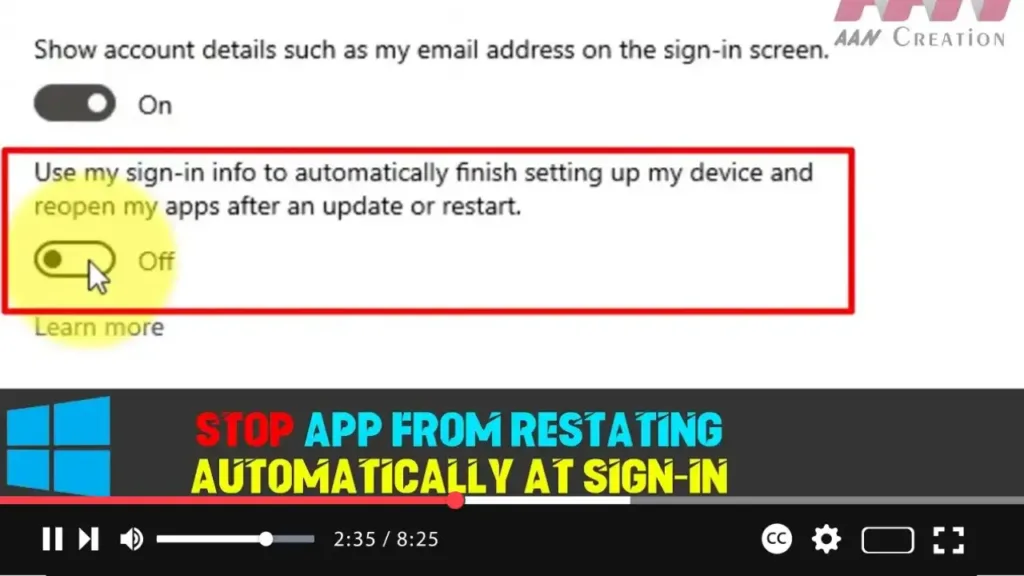

Windows 10 includes a feature that enhances the sign-in process by using your sign-in credentials to complete the setup of your device after certain updates. Initially introduced for quality or feature updates, this functionality expanded with the Windows 10 Fall Creators Update to regular reboots and shutdowns, optimizing the speed at which you can get back to your previous activities.
This feature ensures that applications you had open in your last session are automatically restarted when you sign in again, allowing you to pick up where you left off. While convenient for many, it’s not always desired, especially if the apps aren’t needed or you want a clean desktop upon restart. Thankfully, Windows 10 allows you to control this feature, giving you the option to disable the automatic reopening of apps.
Here’s how you can stop apps from reopening automatically at sign-in.
Steps to Disable Automatic App Restart:
Step 01:
Open the Settings app. You can do this by clicking on the Start menu and selecting the gear icon, or simply pressing the Windows key + I on your keyboard.
Step 02:
Navigate to Accounts in the Settings menu.
Step 03:
Once in the Accounts section, click on Sign-in options from the left-hand pane.
Step 04:
Scroll down to the Privacy section. Here, you’ll see a toggle switch next to the option that says, Use my sign-in info to automatically finish setting up my device after an update or restart. Turn this switch off.

Advanced Explanation:
Once this setting is disabled, your computer will no longer use your login credentials to automatically restore the apps that were running prior to the reboot. However, you should note that this setting can also affect how the system behaves after installing updates. For example, after feature updates, you’ll need to manually log in to finish the setup process, which could take longer than the seamless automatic process you may have experienced before.
Additional Benefits of Disabling This Feature:
- Increased Privacy: Some apps may contain sensitive information, and having them automatically reopen at sign-in could pose a security or privacy risk, especially if someone else accesses your device.
- Faster Boot Times: Although designed to speed up the process, sometimes reopening several apps at once can slow down system performance, particularly on devices with less processing power.
- Reduced System Resource Usage: Automatically restarting multiple apps can use more system resources like memory and CPU, which may degrade overall performance until the apps are fully reopened.
Disabling this feature gives you better control over your system, ensuring that only the apps you want are opened manually when you’re ready to use them. This can lead to a cleaner, more streamlined desktop experience.
With this adjustment, Windows 10 becomes more flexible, adapting to users who prefer a more hands-on approach to application management.

