
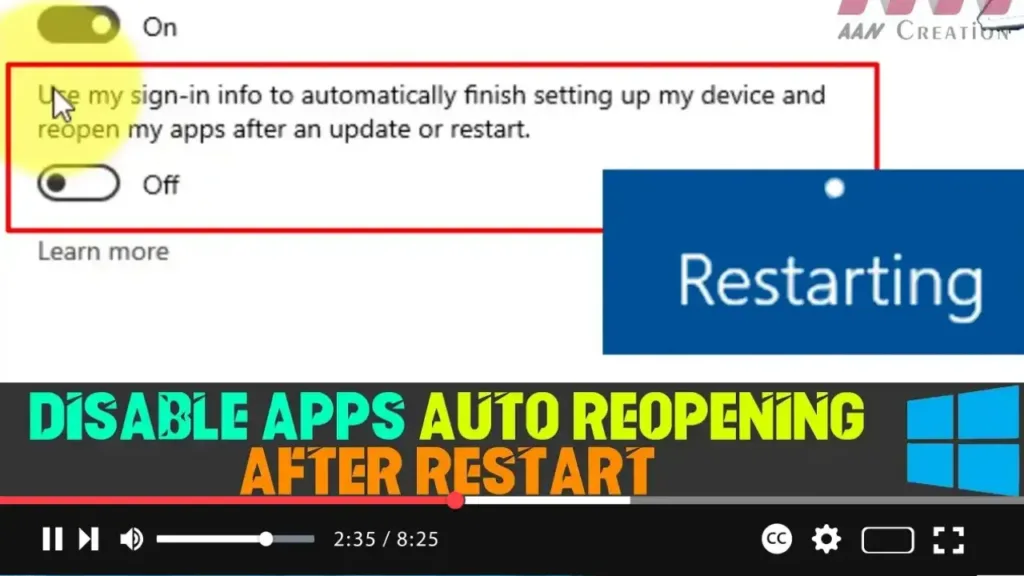

Windows 10 is designed to be efficient, and one of its features is the ability to automatically reopen applications that were running in the last session when you restart your device. This can be handy for some users, as it helps speed up the sign-in process and allows you to quickly pick up where you left off. However, not everyone finds this feature useful.
If you prefer not to have applications automatically reopen after a restart, you can easily disable this feature using the Settings app.
Step 01: Open Settings
- Start by opening the Settings app on your Windows 10 device. You can do this by clicking the Start button and then selecting the Settings gear icon, or by pressing Windows + I on your keyboard.
Step 02: Navigate to Accounts
- In the Settings window, click on Accounts. This section allows you to manage various account-related settings, including sign-in options.
.webp)
Step 03: Access Sign-in Options
- Once in the Accounts section, select Sign-in options from the left-hand menu. This will open a new panel where you can configure how you sign in and what happens when you do.
Step 04: Disable the Auto Reopen Feature
- Scroll down to the Privacy section within the Sign-in options.
- Here, you’ll find a toggle switch labeled “Use my sign-in info to automatically finish setting up my device after an update or restart.”
- Turn off this toggle switch. This will prevent Windows 10 from automatically reopening apps that were running before your last shutdown or restart.
What to Expect After Disabling This Feature
.webp)
After you have completed these steps, applications will no longer start automatically after restarting or shutting down your computer. However, keep in mind that after installing a major update (such as a quality or feature update), you will need to sign in to complete the setup process, which might take a bit longer.
By following these instructions, you can ensure that your Windows 10 experience is more tailored to your preferences, giving you control over what happens when you start up your computer.

