
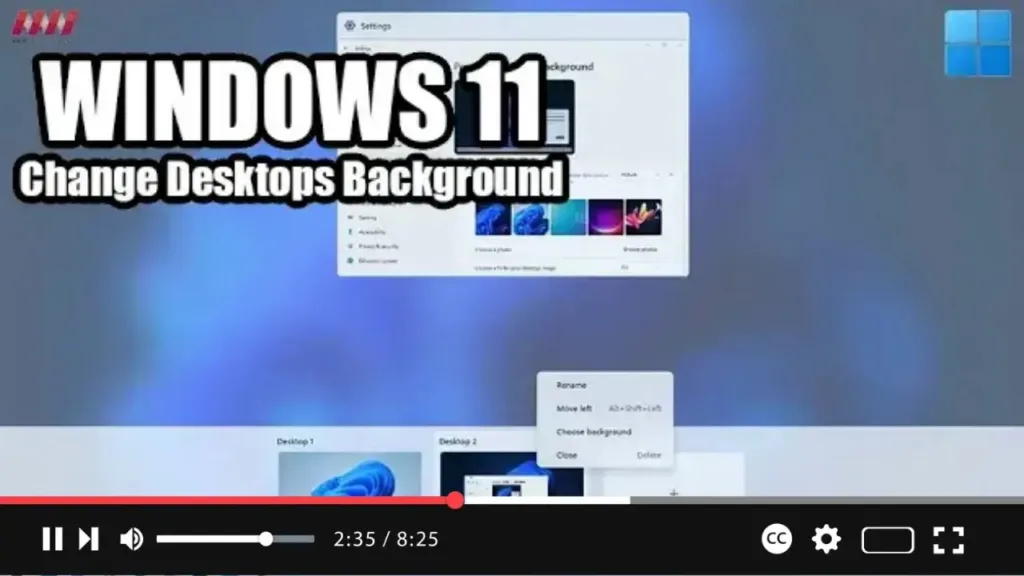

Excited to customize your virtual desktop backgrounds on Windows 11? Here’s how you can do it in just a few simple steps:
Step 01: Open Task View: Start by opening Task View on your Windows 11 system. You can do this by pressing the Task View button on the taskbar or by using the Windows key + Tab keyboard shortcut.
Step 02: Create New Desktop: Once in Task View, click on the “New desktop” button to create a new virtual desktop.
Step 03: Select Background: After creating the new desktop, right-click on the desktop and select the “Choose background” option from the context menu.

Step 04: Set Background Image: A window will appear allowing you to select an image for the background of your virtual desktop. Choose the image you want and click “Open” or “Select” to set it as the background.
By following these steps, you’ll be able to customize each virtual desktop with a different background image on Windows 11. This subtle change can help improve your productivity by allowing you to quickly identify each desktop in Task View.
Feel free to experiment with different background images to personalize each virtual desktop according to your preferences.

