
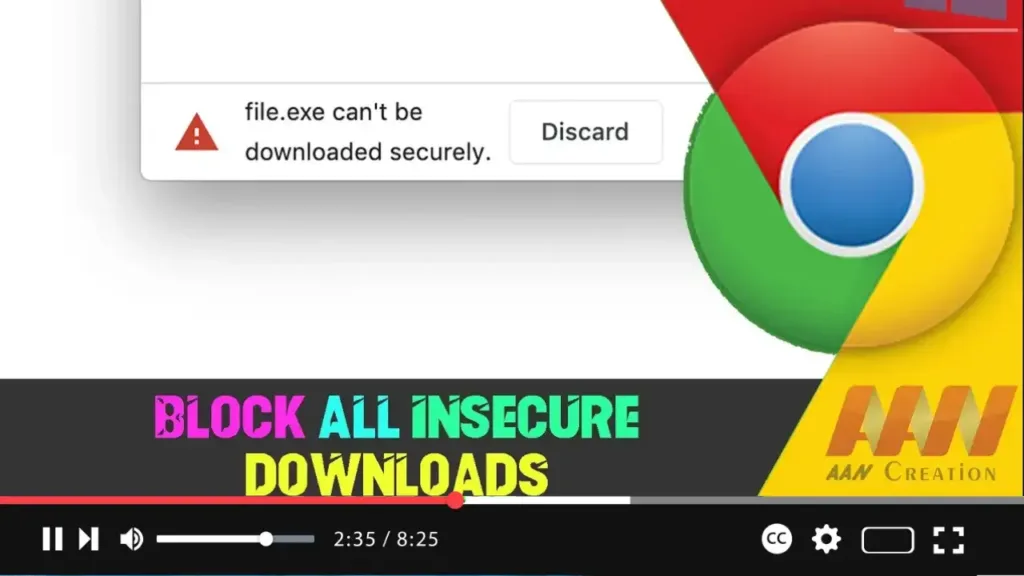

Blocking all insecure downloads in Google Chrome helps protect your system from potential security threats. Insecure downloads are those that come from non-HTTPS sources, which can be susceptible to tampering and interception. This guide will walk you through the steps to enable this feature in Google Chrome.
Introduction
Google Chrome offers a security feature that blocks downloads from insecure sources (HTTP) to ensure that all downloaded files come from secure connections (HTTPS). This feature enhances your browsing security by preventing malicious files from being downloaded onto your system.
Steps to Enable Block All Insecure Downloads on Google Chrome
Step 01: Open Google Chrome
Launch Google Chrome on your computer.
Step 02: Access Chrome Flags
To enable the feature, you need to access Chrome’s experimental features (flags).
Type chrome://flags/ in the address bar and press Enter.
.webp)
Step 03: Search for Insecure Downloads Flag
In the search box at the top of the Flags page, type “insecure downloads.”
Step 04: Enable Insecure Downloads Blocking Flag
Find the flag named “Block insecure downloads” or similar (the exact name may vary depending on your Chrome version).
Click the dropdown menu next to the flag and select “Enabled.”
Step 05: Relaunch Google Chrome
After enabling the flag, click the “Relaunch” button that appears at the bottom of the Chrome Flags page to restart the browser and apply the changes.
.webp)
Additional Information
Understanding Insecure Downloads: Insecure downloads originate from non-HTTPS sources. These downloads can be intercepted and modified by attackers, posing significant security risks.
Impact on Browsing: Enabling this feature will block all downloads that are initiated from non-secure connections. Ensure that the websites you frequently download from are using HTTPS to avoid disruption.
Third-Party Extensions: If needed, you can use third-party security extensions that offer additional download protection features.
Regular Updates: Keep Google Chrome updated to the latest version to ensure you have the most recent security features and patches.
By following these steps, you can enable the block for all insecure downloads on Google Chrome, significantly enhancing your browsing security and protecting your system from potential threats.

