
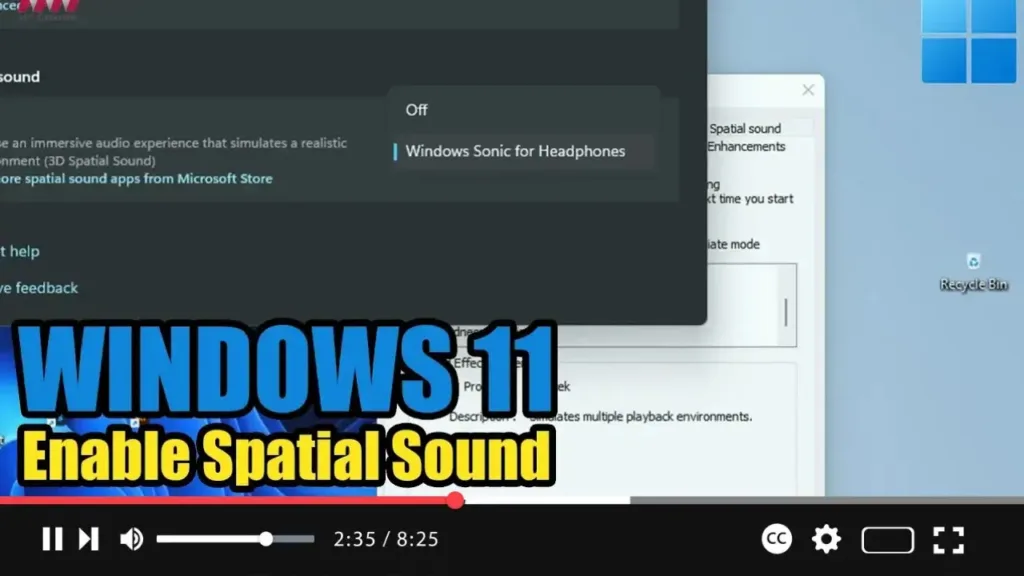

On Windows 11, spatial sound is an audio format that provides a more immersive experience. As you turn on the spatial sound using the “Windows Sonic for Headphones” feature, you will feel like the sound is playing around you instead of directly coming from the speakers.
Spatial sound is what Microsoft refers to as 3D sound, and you can use it on virtually any headphones, but on supported hardware it works best.
.webp)
In this video, you will learn the steps to use headphones with the spatial sound format available on Windows 11. Use these steps:
Step 01: Open Settings First, Open Settings on Windows 11.
Step 02: Click on System Click on System.
Step 03: Access Sound Settings Click the Sound page on the right side.
Step 04: Select Speakers Under the “Output” section, click the Speakers page.
.webp)
Step 05: Enable Spatial Sound Under the “Spatial sound” setting, use the Type drop-down menu and select the Windows Sonic for Headphones option to enable spatial sound on Windows 11.
Although you can use spatial sound with any headphones, it is recommended to use headphones that support the feature.

