
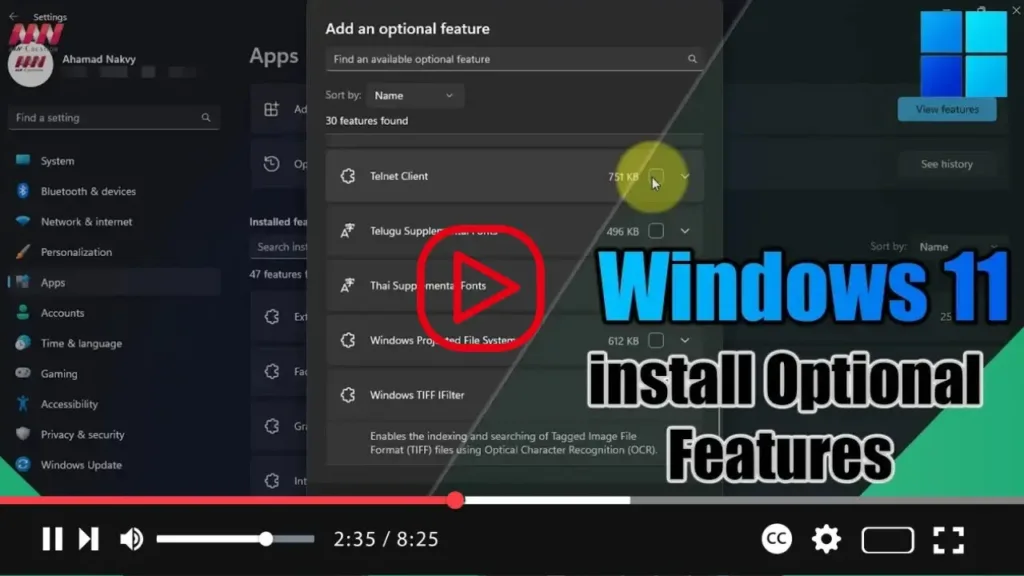

On Windows 11, Optional Features offer additional functionalities that are not essential for system operation but can enhance your overall user experience. While the operating system comes pre-installed with certain optional features like Internet Explorer mode and Notepad, users have the flexibility to install or remove additional components based on their preferences and requirements. In this guide, we’ll walk you through the steps to install extra features on Windows 11, allowing you to customize your system to suit your needs.
.webp)
Step-by-Step Guide:
-
Open Settings:
Start by opening the Settings app on your Windows 11 computer. You can do this by clicking on the Start menu and selecting “Settings” from the list of options. -
Navigate to Apps:
Within the Settings app, click on the “Apps” category to access the Apps settings. -
Access Optional Features:
In the Apps settings, locate and click on the “Optional Features” tab. This section allows you to manage optional components on your system. -
View Available Features:
Within the Optional Features tab, you’ll find the “Add an optional feature” setting. Click on the “View features” button within this setting to see the list of available optional features that you can install. -
Select Features to Install:
Browse through the list of optional features and select the ones you wish to install on your Windows 11 system. You can choose from a variety of components such as XPS Viewer, Wireless Display, Microsoft Quick Assist, Windows Storage Management, and more. -
Initiate Installation:
Once you’ve made your selections, click the “Next” button to proceed. Review the list of features you’ve chosen, and then click the “Install” button to initiate the installation process. -
Wait for Installation to Complete:
Windows 11 will begin downloading and installing the selected optional features. Depending on the size of the components and your internet connection speed, this process may take some time. Be patient and wait for the installation to complete.
.webp)
Congratulations! You have successfully installed additional features on your Windows 11 system. These components will now be available for use, allowing you to enjoy enhanced functionality and capabilities on your computer. Feel free to explore and customize your system further by installing or removing optional features as needed.

