
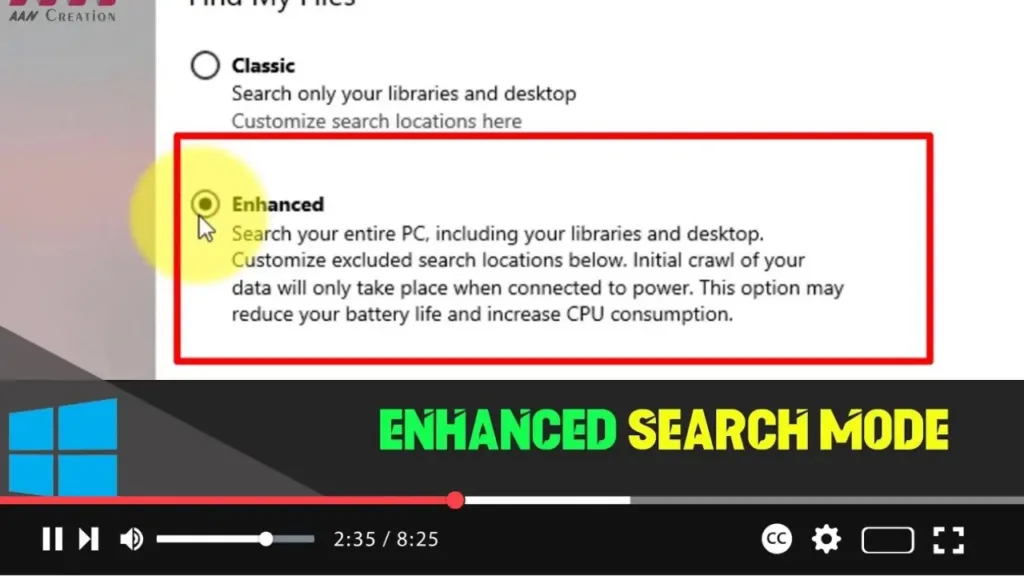

Enhanced Search Mode on Windows 10 enhances your search experience by indexing all your files and documents, making it quicker and easier to find what you’re looking for. This feature, when enabled, ensures that your searches are more accurate and comprehensive. Below, we’ll walk you through the steps to enable Enhanced Search Mode on your Windows 10 system.
Steps to Enable Enhanced Search Mode:
Step 01: Open Settings
Click on the Start menu button in the bottom-left corner of your screen, then select the gear icon to open the Settings app.
Step 02: Access Search Settings
In the Settings window, click on the “Search” category.
Step 03: Choose Searching Windows
On the left-hand side of the Search settings page, select the “Searching Windows” option.
Step 04: Enable Enhanced Mode
Scroll down the right-hand side of the window until you find the “Use enhanced mode” toggle switch. Click on the toggle switch to turn it on.
Step 05: Confirm the Changes
Windows may prompt you to confirm the changes. If prompted, click “Yes” or “OK” to confirm and apply the changes.
Step 06: Wait for Indexing
Once enabled, Windows will begin indexing your files and documents. Depending on the size of your data, this process may take some time. You can continue to use your computer while indexing is in progress.
Step 07: Test the Enhanced Search
After indexing is complete, you can test the Enhanced Search Mode by pressing the Windows key on your keyboard and typing a search query into the search box. You should notice faster and more accurate search results.

Additional Information:
-
Indexing Options: You can further customize the indexing options by clicking on the “Advanced search indexing options” link in the Search settings page. Here, you can choose which folders and files are indexed for faster searches.
-
Search Filters: Windows 10 offers various search filters that you can use to narrow down your search results. These filters include file type, date modified, and size.
-
Cortana Integration: Enhanced Search Mode works seamlessly with Cortana, Microsoft’s virtual assistant. You can use voice commands to initiate searches and access information quickly.
By following these steps, you can enable Enhanced Search Mode on your Windows 10 system, enhancing your search experience and productivity.

