
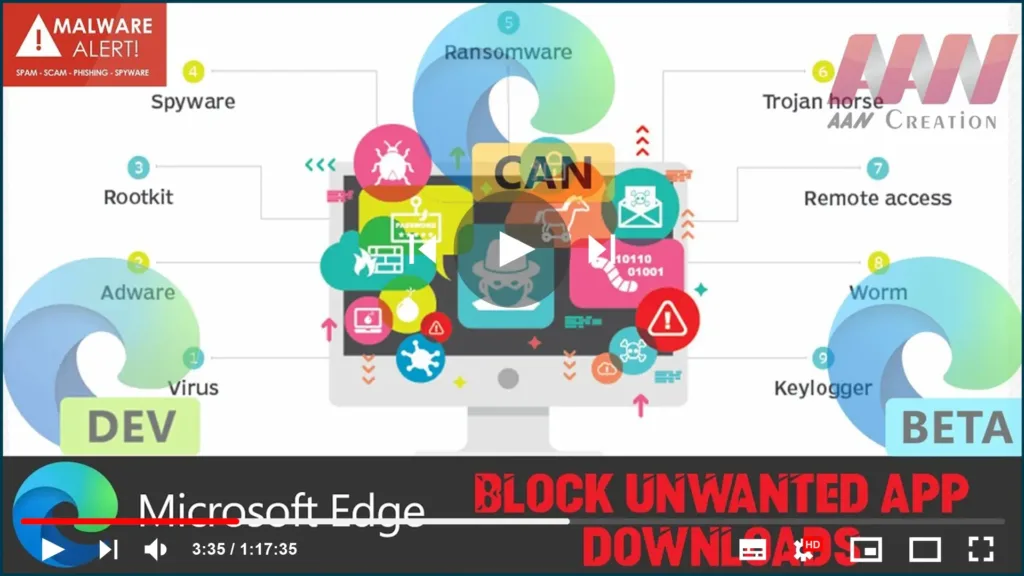

Microsoft Edge can now prevent potentially harmful apps from being
downloaded to your device.
downloaded to your device.
Although the Chromium version of Microsoft Edge already ships with the
“Microsoft Defender SmartScreen” feature to prevent malicious websites and
downloads from hijacking your device, Microsoft is now introducing a new
feature to block unwanted apps from downloading using the browser.
“Microsoft Defender SmartScreen” feature to prevent malicious websites and
downloads from hijacking your device, Microsoft is now introducing a new
feature to block unwanted apps from downloading using the browser.
The security feature has been designed to block unwanted apps that are
not necessarily malware, such as toolbars, adware, crypto-miner apps, and
notification spammers.
not necessarily malware, such as toolbars, adware, crypto-miner apps, and
notification spammers.
In this guide, you’ll learn the steps to enable the feature to block
potentially harmful apps from downloading with the Chromium version of
Microsoft Edge on Windows 10.
potentially harmful apps from downloading with the Chromium version of
Microsoft Edge on Windows 10.
(adsbygoogle = window.adsbygoogle || []).push({});
To block potential harmful app downloads on Microsoft Edge Chromium, use
these steps:
Important: This is a feature that is currently available in the
latest Microsoft edge insider Channel versions.
01. Open Microsoft Edge.
02. Click the Settings and More (three-dotted) button on the top-right
corner.
03. Click on Settings.

04. Click on Privacy and services.
05. Under the “Services” section, turn on the Block potentially unwanted
apps toggle switch.

Once you complete the steps, Microsoft Edge will block downloads for apps
known to have a low reputation, which may cause unexpected behaviors on your
Windows 10 device.

