
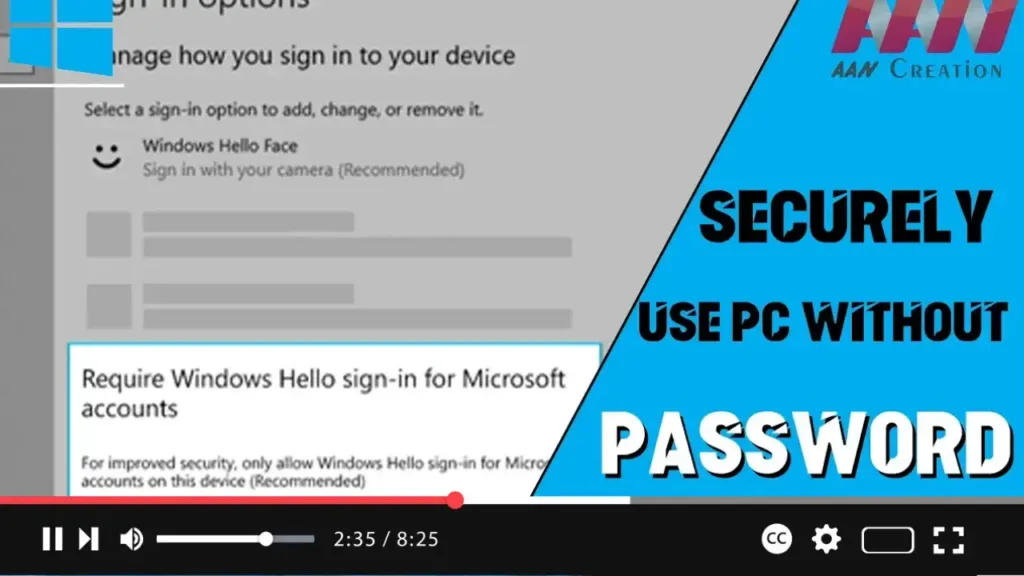

Windows 10 offers biometric authentication through Windows Hello, enabling users to sign in without a password. With version 2004, Microsoft has introduced a feature to make devices completely passwordless. The “Require Windows Hello sign-in for Microsoft account” feature allows switching all Microsoft accounts on your device to Windows Hello’s modern authentication methods.
In this video, you’ll learn the steps to replace the password with Windows Hello authentication on Windows 10 version 2004.
Steps to Enable Windows Hello Authentication
Step 01: Open Settings
- Open the Start menu and click on the Settings gear icon.
Step 02: Click on Accounts
- In the Settings window, click on Accounts.
.webp)
Step 03: Click on Sign-in Options
- In the Accounts section, select Sign-in options from the sidebar.
Step 04: Enable Windows Hello Sign-in
- Turn on the Require Windows Hello sign-in for Microsoft account toggle switch.
Conclusion
Enabling this feature will switch all Microsoft accounts on your device to modern authentication methods like PIN, fingerprint, or face recognition, enhancing security and eliminating the need for passwords.
Visual Summary
- Open Settings:
- Click on Accounts:
- Click on Sign-in Options:
- Enable Windows Hello Sign-in:
By following these steps, you can improve your device’s security and convenience by switching to Windows Hello’s passwordless authentication methods.

