

As you may recall, Microsoft has made efforts to add the ability to use the built-in spell checker in Windows in Chromium-based browsers. First introduced in Chrome Canary, this new feature has finally reached Microsoft Edge Chromium.
In addition to the default Hunspell spellchecker, the Microsoft team has made the native Windows Spellchecker available in Windows 10 and Windows 8 browsers. The Hunspell spellchecker is an open-source project that powers many other popular Linux-based applications, including LibreOffice, Geany, Pidgin, and many others.
In this guide, you’ll learn the steps to Enable Windows Spellchecker in the Chromium Version of Microsoft Edge.
01. Open Microsoft chromium edge.
02. Type the following path into the address bar of Edge.
edge://flags/#win-use-native-spellchecker
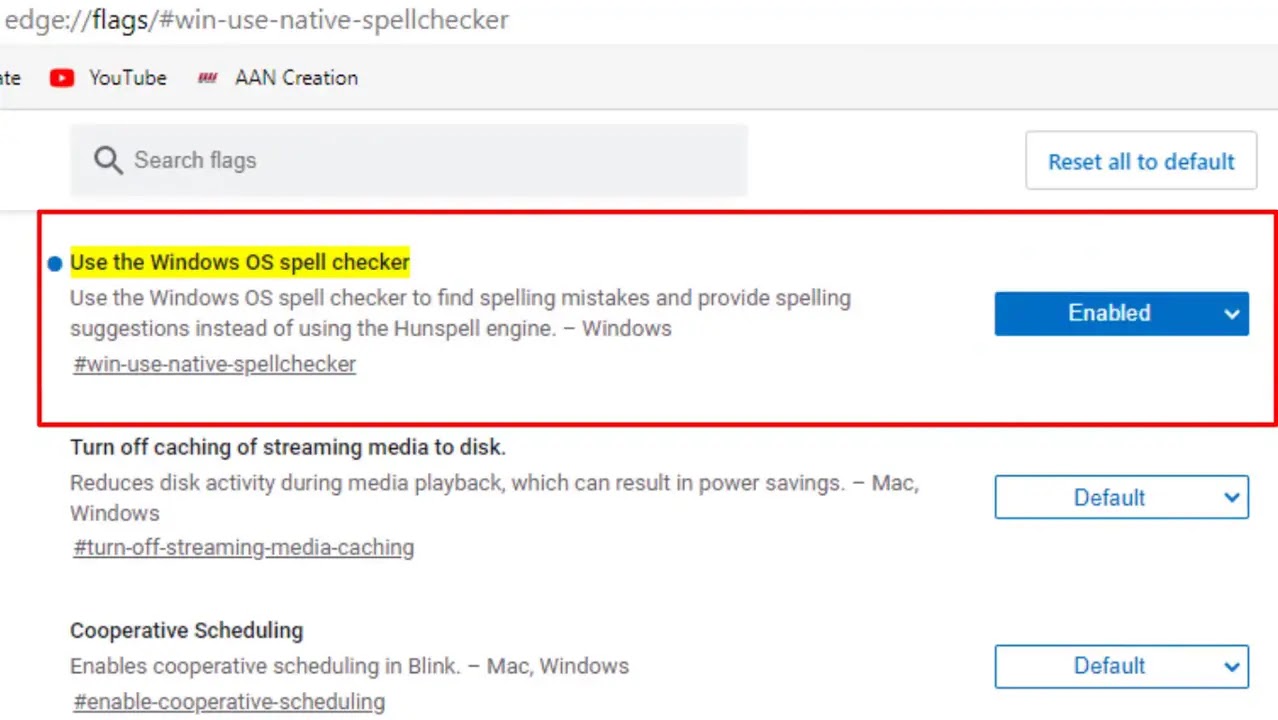
03. Enable the flag to use the Windows OS spellchecker.
04. Relaunch the browser
The ability to use the native spell checker of Windows is still an experimental feature, so it may have usability and stability issues. That’s why it is ‘hidden’ behind a flag.

