
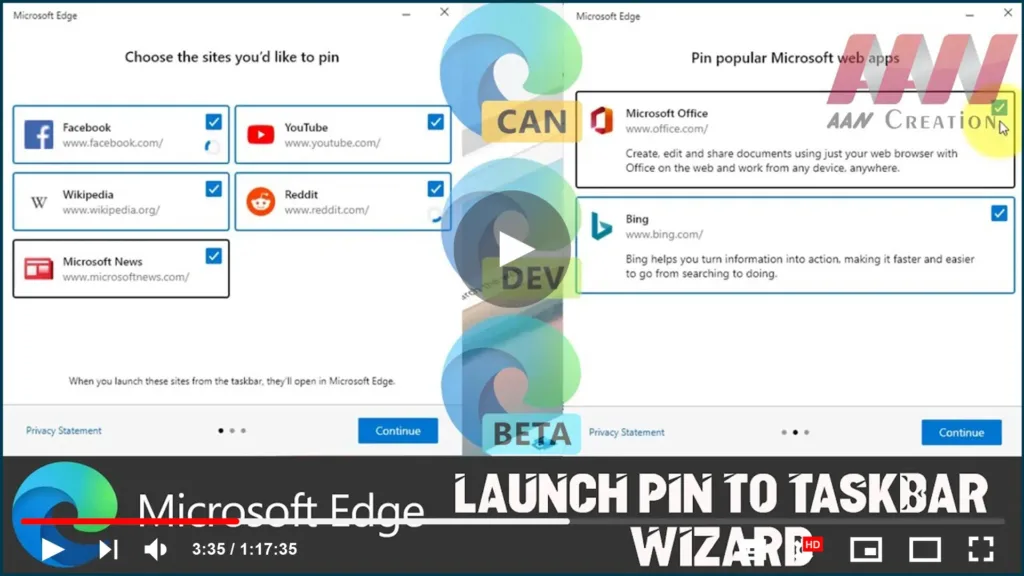

Aside from the ability to install virtually any website as a web app, the
new version of Microsoft Edge based on the Chromium engine includes an
option to pin suggested websites using a guided wizard.
new version of Microsoft Edge based on the Chromium engine includes an
option to pin suggested websites using a guided wizard.
In this guide, you’ll learn how to use Microsoft Edge to pin websites as
web apps in the taskbar on Windows 10.
web apps in the taskbar on Windows 10.
A quick tip: This is an experimental feature available with the version
of Edge in the insider channels (Canady, Dev, Beta).
of Edge in the insider channels (Canady, Dev, Beta).
To use the wizard to pin web apps to the taskbar, use these steps:
01. Open Microsoft Edge.
02. Click the Settings and more (three-dotted) button and select the More
tools menu.
03. Select the Launch pin to the taskbar wizard option.
(adsbygoogle = window.adsbygoogle || []).push({});

04. Check the websites you want to pin to the taskbar. (These sites will be
pinned as Progressive Web Apps.)
05. Click the Continue button.

06. (Optional) Check the Microsoft web apps you want to see in the
taskbar.

07. Click the Continue button.
08. Click the Close button.
Once you complete the steps, the sites you selected will appear in the
taskbar for quicker access.

